Simon Vedder

Cloud Engineer · Zürich

PowerShell module · Bicep orchestrator

AzureInPlaceUpgrade

Take an Azure VM from Windows Server 2016, 2019 or 2022 to 2025 without an RDP session. Read-only preflight, an OS disk snapshot and unattended Setup in one workflow.

Install-Module AzureInPlaceUpgrade -AllowPrerelease

licenseMITPowerShell7.2+galleryv0.3.1-previewpreflightread-onlytargetsWS2016/2019/2022 → 2025

pwsh · Az.Compute
# 1. Read-only preflight — a short Run Command probe, nothing changes
Test-InPlaceUpgradeReadiness -ResourceGroupName rg-apps -Name vm-app-01 -Target WS2025
Decision  Eligible   ·  19 checks, 0 blocking
# 2. Name a VM and a target: snapshot, media disk, Setup as SYSTEM
$s = Start-InPlaceUpgrade -ResourceGroupName rg-apps -Name vm-app-01 -Target WS2025
Setup started  ·  returns in minutes, $s carries the resume values
# 3. Every 20 minutes until Completed or Failed — locally or from Automation
Complete-InPlaceUpgrade -ResourceGroupName rg-apps -Name vm-app-01 -Target WS2025 -Snapshot $s.Snapshot
vm-app-01  Completed   ·  Windows Server 2025, build 26100

Hands on

Run it against one VM

From a workstation with PowerShell 7.2 and the Az modules. Nothing is deployed into your subscription and no tags are involved — you name the VM and the target, and the preflight refuses anything it does not like.

PowerShell 7.2+
# Install once, from the Gallery.
Install-Module AzureInPlaceUpgrade -AllowPrerelease
Connect-AzAccount

# Nineteen read-only checks inside the guest. Nothing is created, attached or started.
Test-InPlaceUpgradeReadiness -ResourceGroupName rg-apps-prod-weu -Name vm-app-prod-weu-01 -Target WS2025

# Snapshot, media disk, Setup, and wait for the guest to report the target build. That is the whole thing.
Invoke-InPlaceUpgrade -ResourceGroupName rg-apps-prod-weu -Name vm-app-prod-weu-01 -Target WS2025

# See what it would do, without touching the VM:
Invoke-InPlaceUpgrade -ResourceGroupName rg-apps-prod-weu -Name vm-app-prod-weu-01 -Target WS2025 -WhatIf

# Inside Azure Automation a job dies after three hours, so start and check separately.
# Start returns in minutes and hands you the finished Complete line:
$s = Start-InPlaceUpgrade -ResourceGroupName rg-apps-prod-weu -Name vm-app-prod-weu-01 -Target WS2025
$s.ResumeCommand

# Which targets does a Windows Server 2016 guest (build 14393) have?
Get-InPlaceUpgradeTarget -SourceBuild 14393 | Select-Object Name, DisplayName

# Every switch:
Get-Help Invoke-InPlaceUpgrade -Full

A rerun reuses the snapshot with -ReuseSnapshot, a running Setup is never started twice because the preflight sees it in the guest, and -WhatIf works everywhere. Every cmdlet and every parameter is in the command reference.

Fleet mode

Run it against a fleet

One subscription-scope deployment, and the fleet upgrades itself ring by ring on a schedule you control. This is the only mode in which tags matter.

Deploy to Azure
Azure CLI
az deployment sub create -l westeurope -f deploy/main.bicep \
  -p moduleVersion=0.3.1-preview targetResourceGroupName=rg-apps-prod-weu ring=Ring0 maxParallel=3

Tags are the runbook's business, not the module's: it selects VMs by UpgradeTarget and UpgradeState=Pending, passes the target to the module as -Target, and writes the progress back so the next Check job knows where to resume. The runbook itself is a thin wrapper — it signs in with the identity, applies -Ring and -MaxParallel, calls the module per VM and summarises. Details in deploy/README.md.

One deployment creates

  • Automation Account with a system-assigned identity and the module imported from the Gallery
  • The custom role "Azure VM In-Place Upgrade Operator" — the exact list of actions, nothing more
  • The runbook, a Check schedule every 20 minutes and a daily Start schedule that is only linked when you say so
  • Log Analytics workspace, the InPlaceUpgrade_CL table, data collection endpoint and rule
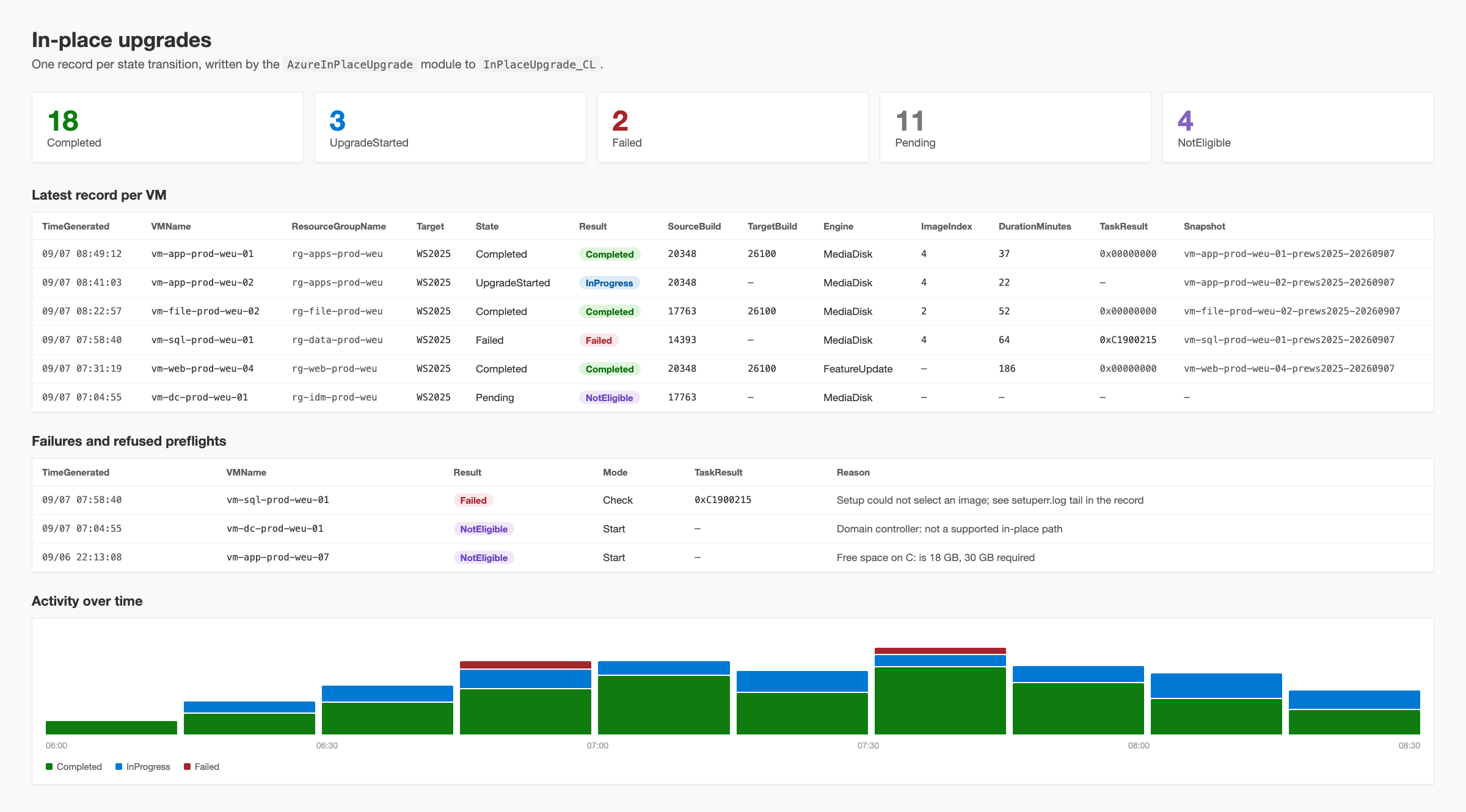
  • The workbook "In-place upgrades" — every VM, every transition, every failure reason
In-place upgrades · Azure Monitor workbook · sample data
The In-place upgrades workbook: tiles counting VMs by state, the latest record per VM with source and target build, engine, duration and snapshot, a failures table, and activity over time

Before you start

Who needs which role

Compute actions rather than a built-in role, so the deployment ships a custom role with exactly this list.

Option 1

Run commands yourself

Your own account holds these, on the VMs you upgrade.

  • Microsoft.Compute/virtualMachines/read, write, instanceView/read, runCommand/action
  • Microsoft.Compute/disks/read, write, delete
  • Microsoft.Compute/snapshots/read, write
  • Microsoft.Compute/locations/publishers/artifacttypes/offers/skus/versions/read

Option 2

Deploy the orchestrator

A managed identity holds these. The deployment creates the custom role and assigns it.

  • Everything in option 1
  • Microsoft.Resources/tags/write
  • Microsoft.Network/networkInterfaces/join/action
  • Monitoring Metrics Publisher — the data collection rule

Virtual Machine Contributor covers every action above except Microsoft.Compute/snapshots/*, which is the rollback point — that gap is why the deployment ships a custom role rather than using the built-in one. To run the deployment: Owner or User Access Administrator on the subscription, to create the role definition and assign it. Test-InPlaceUpgradeReadiness needs only the read actions plus runCommand/action; the exact list per command is in the command reference.

Under the hood

From preflight to Windows Server 2025

Two short phases, in both modes. Start takes minutes and returns; Check runs every 20 to 30 minutes until the guest reports the target build. Where the progress is kept is the caller's choice — you hold it in a variable, the runbook holds it in tags.

  1. Preflight

    Nineteen read-only checks — power state, disk type, edition, installation type, language, free space, pending reboot, domain controller, cluster, activation channel, media availability in the region.

  2. Snapshot

    An incremental snapshot of the OS disk. Start returns its name, and it stays until you delete it — this is the rollback point.

  3. Media

    Microsoft's hidden upgrade image becomes a managed data disk on LUN 0. No network access needed inside the guest.

  4. Setup

    A scheduled task runs setup.exe as SYSTEM with the right /imageindex, detached from Run Command. The job returns; the VM goes on rebooting on its own.

  5. Check

    Reads the build number from the guest registry, the task state and the Setup result. Build equals target → Completed. Task failed or timed out → Failed, with the tail of setuperr.log.

  6. Clean up

    Removes the media disk and the scheduled task, sends one record per transition to Log Analytics. In fleet mode the runbook also writes the final tag.

Setup runs from a scheduled task, not from Run Command. Run Command is capped at 90 minutes and dies with the first reboot. Decision record →
Start and Check are separate jobs. Azure Automation cancels cloud jobs after three hours; an upgrade takes 40 minutes on a good day and three hours on a bad one. Decision record →
Validation reads the guest, not ARM. The image reference on the VM never changes after an in-place upgrade. CurrentBuildNumber in the registry does not lie.

Matrix

Supported paths

Shipped as targets.json. A tag value that is not a key there never reaches an Azure image. Same edition, same installation type, 64-bit, en-US, Standard and Datacenter, Server and Server Core. Windows Server Azure Edition is out of scope.

TargetSourceMediaDisk engineFeatureUpdate engine
WS2025Windows Server 2022Verified — Desktop Experience and CoreVerified once
WS2025Windows Server 2019Verified — through Azure AutomationDocumented
WS2025Windows Server 2016VerifiedNot available
WS2025Windows Server 2012 R2Documented by MicrosoftNot available
WS2022Windows Server 2016, 2019Documented by MicrosoftNot available
WS2019Windows Server 2012 R2, 2016Documented by MicrosoftNot available

"Verified" means the path ran end to end in this project's lab on a Marketplace VM; runs, timings and result objects are in docs/verification.md. The media disk finishes in 37 to 43 minutes; the feature update took two to three hours on the same image.

Limits

Before you tag production

Microsoft's own caution applies unchanged — an in-place upgrade disconnects the VM's data plane from its control plane, and auto guest patching, automatic OS image upgrades, hotpatching and Azure Update Manager may not work afterwards. If the VM is built from code and replaceable, redeploy it on a 2025 image instead. This is for the servers that are expensive to rebuild.

Do not use in place forWhyDo this instead
Domain controllersMicrosoft advises against it; AD improvements in 2025 need a clean installPromote new DCs, demote old ones
Failover cluster nodesNot a supported in-place pathCluster-Aware Updating or a rolling upgrade
Datacenter: Azure EditionHotpatch servicing model, different mediaRedeploy on the 2025 Azure Edition image
Ephemeral or unmanaged OS disksNo snapshot, or not supported at allMigrate to managed disks, or redeploy
Non-en-US installsThe upgrade media is en-US onlyChange the system language, or redeploy
Retail or OEM activated guestsThe media requires volume licensingConvert to a KMS client key first
Anything without a tested restoreA snapshot you never restored is a hopeRestore once in a lab, then proceed

Read "When not to use this" in full

FAQ

Questions people ask first

Does it reboot my VM?

The module never does. Windows Setup reboots the VM several times on its own once it runs, which is why Setup is started as a scheduled task and not from Run Command. A reboot that is already pending before the start blocks the preflight — restart first, then start the upgrade.

What is the 0xC1900215 error, and why does the module care?

Under /quiet, Setup cannot ask which image to install, and the upgrade media carries a Core and a Desktop Experience image per edition. Setup logs "Image selection response not found" and gives up with 0xC1900215. A product key does not help. The module lists the images in install.wim, matches EditionId and InstallationType of the guest and passes /installfrom and /imageindex every time.

How long does an upgrade take?

With the media disk, 37 to 43 minutes end to end in the lab, on Marketplace VMs from 2016, 2019 and 2022. The feature update engine took two to three hours on the same 2022 image. Budget a 60 to 120 minute maintenance window per VM, plus reboots.

Can I roll back?

Start creates an incremental snapshot of the OS disk before anything changes and returns its name; in fleet mode the runbook also records it in the UpgradeSnapshot tag. Complete keeps it — it stays until you delete it. Restoring means creating a disk from the snapshot and swapping the OS disk; test that once in a lab before you trust it.

Is an upgraded VM still supported by Microsoft?

Microsoft's Azure documentation says the in-place upgrade causes a disconnection between the VM's data plane and control plane, and that automatic guest patching, automatic OS image upgrades, hotpatching and Azure Update Manager are not officially supported afterwards. The image reference never changes. If you need those features, Microsoft's recommendation is a new VM — and so is mine.

What does a run cost?

An incremental snapshot of the OS disk, and a managed disk for the upgrade media for the duration of the run. Complete deletes the media disk; the snapshot stays until you remove it. There is no agent, no extension and nothing that keeps running afterwards.

Parameters, permissions and versions are in the command reference

Forty servers and a deadline?

I run this against fleets as part of an Azure engagement — preflight report first, rings and maintenance windows agreed, the failures walked through afterwards.

Get in touch