
Every large Entra tenant has the same problem: hundreds of app registrations, most of them forgotten. Here’s a tool to find them and act on what you find.
Update, September 2026. The script now has a proper home. There is a tool page with a sample report you can click through before downloading anything, and a reference generated from the script’s own help, so every parameter is documented in one place instead of buried in the file.
The script is the same one this post describes, with one fix: an app whose federated credentials could not be read used to show as having none. On an audit that is a wrong answer rather than a missing one, so those failures are counted and reported now.
The tool page · Every parameter · Source on GitHub · The walkthrough below is unchanged and still stands.
How this started
Every large tenant has a graveyard.
You look at the app registrations list and there are two hundred entries. Some have recognizable names tied to projects you remember. Others have names like test-app-2019 or ServiceAccount_Legacy_DO_NOT_DELETE — and you genuinely can’t tell whether “do not delete” is a warning or a prayer. A third category has no name pattern at all, just a GUID someone typed once and forgot.
The question “which of these can we clean up?” turns out to be harder than it looks. Harder to answer, and harder to act on even once you have an answer.
This is a problem that comes up in most large organizations eventually. I’ve seen it in enough tenants to stop being surprised by it. The pattern is consistent: apps accumulate over years, ownership disperses, nobody has a clear picture of what’s still in use, and nobody has time to click through two hundred app registrations one by one to find out.
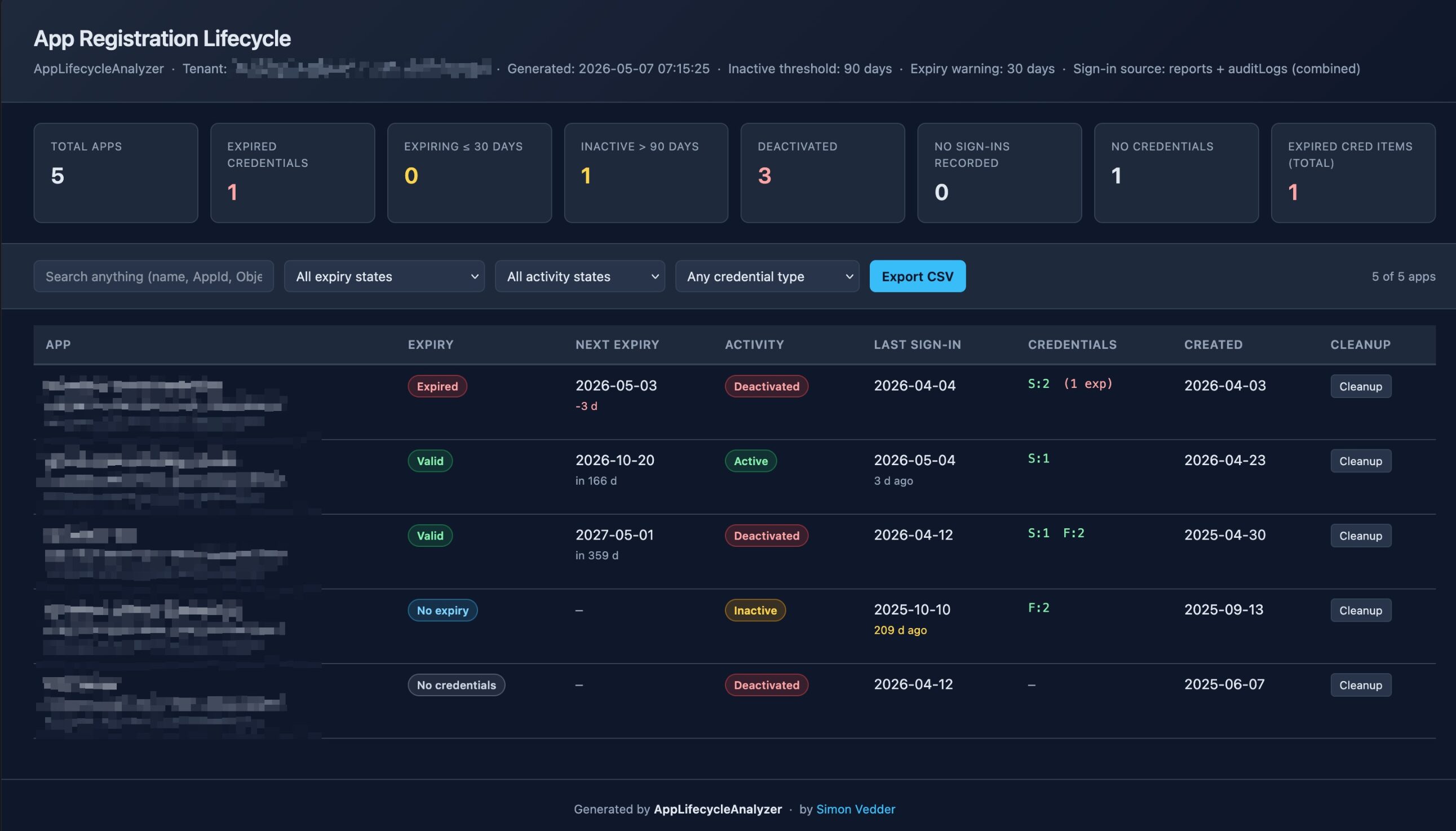
So I wrote a tool. It’s called AppLifecycleAnalyzer. It’s a PowerShell script that scans your Entra ID tenant, classifies every app registration by activity and credential health, and outputs a self-contained interactive HTML report — with the cleanup commands attached.
What the portal actually shows you
To be fair: the Entra admin center isn’t completely blind. You can see all your app registrations in one list. The overview blade shows credential expiry dates per app. Sign-in logs exist. None of this is hidden.
But it’s scattered in a way that makes bulk assessment essentially manual.
From the app registrations list you can see each app’s name, its AppId, and when it was created. To find out when it last signed in, you open it, navigate to the sign-in logs, filter by the service principal, and read a date. Multiply that by two hundred apps. There is no cross-tenant “show me all secrets expiring in the next 30 days” view in the portal. You can export the app list to CSV, but that CSV doesn’t include credential expiry dates or sign-in activity.
The result is that expired credentials accumulate quietly. Nobody is watching because watching requires clicking through each app individually.
The second gap is actionability. Even once you do identify a problem — say, an app with three expired secrets and no sign-in in over a year — the portal gives you a Delete button and a Remove button and nothing else. There’s no “here’s the PowerShell command to remove just the expired secret, scoped to this specific keyId” sitting next to the finding. You look that up separately, construct the command, gather the object IDs, and run it. That friction is what causes cleanup tasks to stall.
That’s the gap this tool closes.
What the script does
AppLifecycleAnalyzer connects to Microsoft Graph and enumerates every app registration in the tenant. For each one it collects:
- Secrets and certificates — each with start date, end date, display name, and keyId
- Federated identity credentials — tracked separately (more on why below)
- Last sign-in timestamp — aggregated from two Graph sources for accuracy
- isDisabled state — whether the app registration has been deactivated in the portal
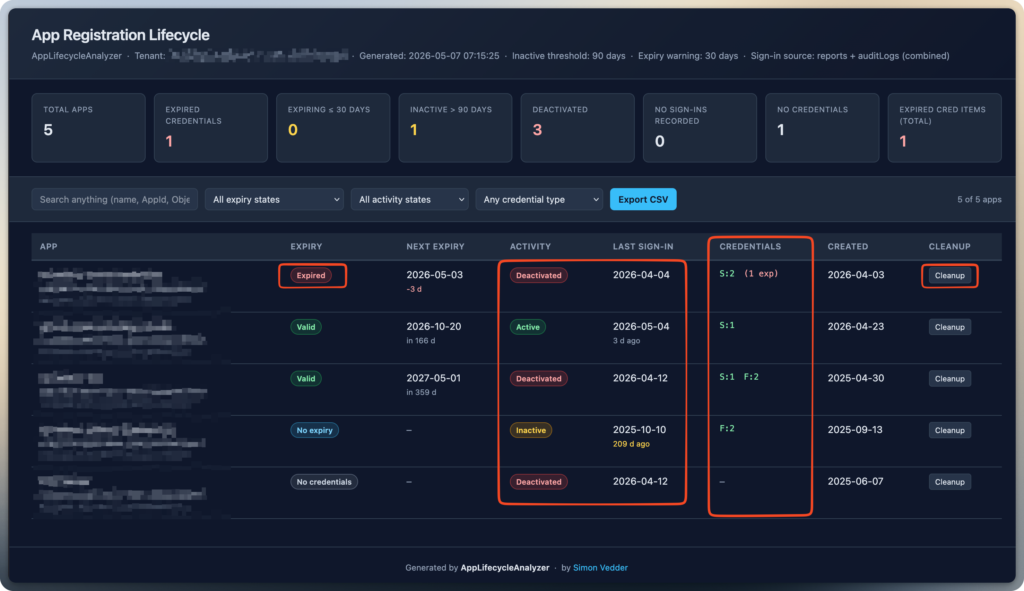
It classifies every app by expiry status (Expired, Expiring soon, Valid, No credentials, No expiry) and by activity status (Active, Inactive, Disabled, No sign-ins recorded, No service principal), then writes everything into a single self-contained HTML file.
The report includes:
- A summary bar at the top — total apps, expired credentials, expiring soon, inactive, deactivated, no sign-ins, no credentials, and total expired credential items across the tenant
- A filterable, sortable table — filter by expiry status, activity status, or credential type; free-text search across name, AppId, ObjectId, and publisher domain
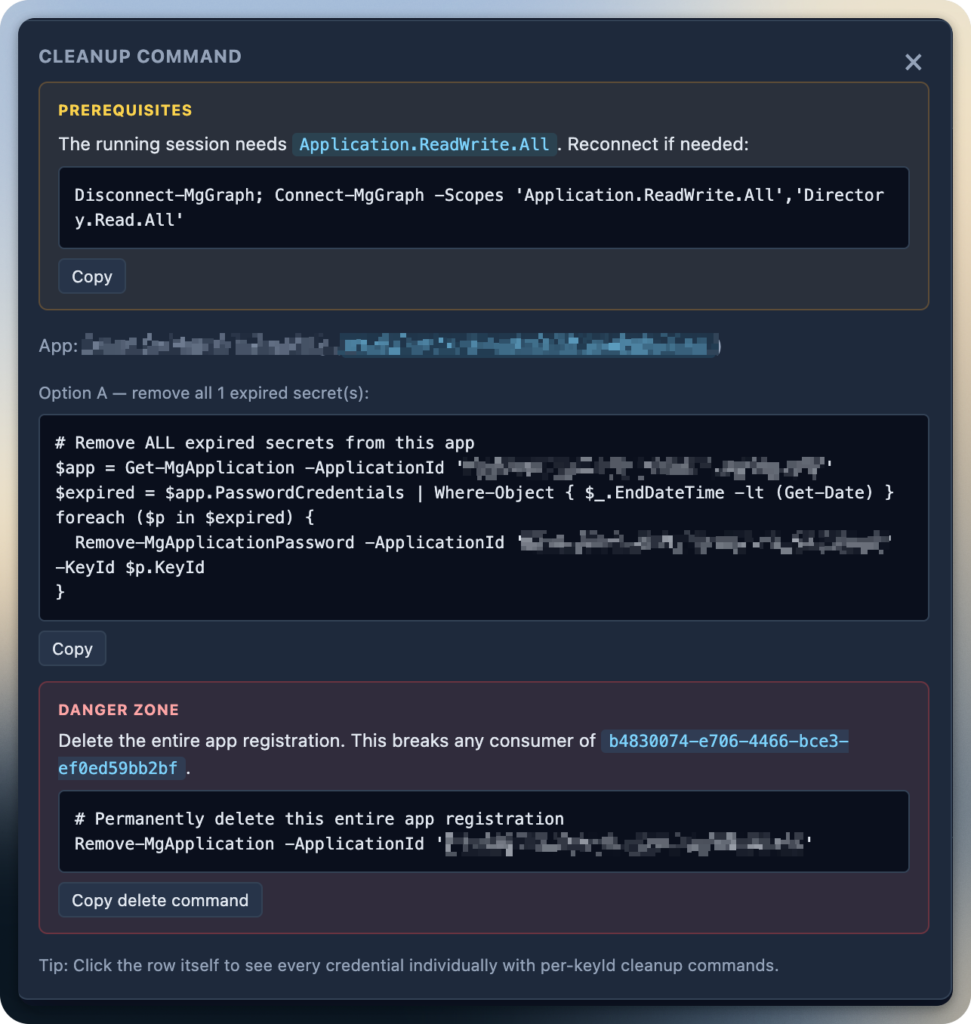
- A Cleanup button per row — clicking it opens a panel with ready-to-run PowerShell: remove all expired secrets, remove all expired certs, or delete the entire app registration. Each command is scoped to the specific app and keyId
- A detail modal per app — click any row to see every credential listed individually, each expired one with its own per-keyId remove command
- CSV export of the currently filtered view
The report is fully self-contained — one HTML file, no external dependencies, opens in any browser.
The decisions worth explaining
Two sign-in sources, one timestamp
Sign-in activity for service principals is trickier to get right than it looks.
The primary source is /beta/reports/servicePrincipalSignInActivities — a per-AppId summary endpoint that covers historical data across all four authentication flows. It’s exactly what you want. The problem is it can lag behind reality by anywhere from minutes to several hours. A service principal that authenticated an hour ago might not appear in the report yet.
To catch fresh sign-ins that haven’t propagated, the script also queries /beta/auditLogs/signIns for the last seven days, filtering for service principal events. For each app, it keeps whichever timestamp is more recent between the two sources.
The practical effect: an app the report says last signed in three months ago, but that actually authenticated this morning, won’t be misclassified as inactive.
Federated credentials aren’t like secrets
App registrations can authenticate using federated identity credentials — configured trusts with external identity providers like GitHub Actions, Kubernetes workloads, or other Entra tenants. These credentials have no expiry date. There’s no endDateTime to monitor.
If an app has only federated credentials, marking it Valid would imply an active secret — which isn’t quite accurate. Marking it Expired would be wrong. So the script breaks it out as a separate status: No expiry.
That way you can filter federated-only apps separately and reason about them on their own terms — their profile is about whether the trust is still intentional, not whether a date has passed.
Two smaller decisions worth a sentence each:
- isDisabled isn’t exposed on the v1 Graph API yet, so the script hits the /beta endpoint to get it
- Write scope is opt-in — pass -RequestWriteScopes if you want to run cleanup from the same session, but the audit itself runs read-only
Running it
No arguments needed to get started:
.\AppLifecycleAnalyzer.ps1
It connects interactively, scans the tenant, and writes a timestamped HTML file to the current directory.
Custom thresholds if you want them:
.\AppLifecycleAnalyzer.ps1 -InactiveDays 60 -ExpiryWarningDays 14
The summary bar at the top gives you the shape of the problem immediately. From there, filter to Expired expiry status to see the cleanup queue. Click Cleanup on any row to get the scoped PowerShell, copy it into a write-scoped session, and run it.
For large tenants, filter to Inactive + Expired combined — apps that haven’t been used in over 90 days and have expired credentials. That combination is usually the highest-confidence cleanup target, though verifying ownership before deleting is always worth the extra minute.
What it doesn’t do
- Sign-in data requires Entra ID P1 or P2. Without a license that includes signInActivity on the Graph API, the last sign-in column will be empty and activity statuses will show as Unknown. The script warns you if it can’t reach the endpoint.
- The reports API lags. The dual-source approach reduces this, but a sign-in from the last hour may not appear yet. Use “no sign-in recorded” as a filter to narrow the investigation, not as a basis for deletion on its own.
- Cleanup commands are generated, not executed. Nothing runs automatically. You copy, review, and run manually. This is intentional — the report is read-only by default, and each command is targeted so you can review it before it runs.
- Managed identities are out of scope. The script covers app registrations and their associated service principals. System-assigned and user-assigned managed identities have a different lifecycle and a different cleanup process — that’s a separate problem.
Where to get it
The tool page is at simonvedder.com/tools/app-lifecycle-analyzer — what it finds, a sample report built from synthetic app registrations, and every parameter with the permissions each one needs.
Source, and the file itself: github.com/simon-vedder/app-lifecycle-analyzer · AppLifecycleAnalyzer.ps1
It requires the following PowerShell modules from the PowerShell Gallery:
- Microsoft.Graph.Authentication
- Microsoft.Graph.Applications
The script prompts to install them if they’re missing, or you can pass -AutoInstallModules to skip the prompt.
Required Microsoft Graph permissions
Delegated read-only permissions:
- Application.Read.All
- AuditLog.Read.All
- Directory.Read.All
Add Application.ReadWrite.All if you want to execute cleanup commands from the same session.
Final thoughts
Most tenants don’t have an app registration problem because administrators are careless. They have one because Entra ID makes lifecycle visibility surprisingly fragmented once you operate at scale.
The hardest part of cleanup is usually not identifying that something is stale — it’s building enough confidence to act on it safely.
The goal of AppLifecycleAnalyzer isn’t to automate deletion. It’s to reduce the friction between visibility and action enough that cleanup actually happens.
Leave a Reply