
 Simon
SimonIn a previous post, I introduced a lightweight, tag-driven VM power management solution in Azure that combined an Automation Runbook with a custom PowerShell GUI — a setup that helped teams control VM runtime, reduce costs, and improve usability compared to Microsoft’s StopStartV2.
That version was already a meaningful step toward automated governance: it evaluated tags, applied exclusion rules, and relied on separate “Start” and “Stop” actions invoked on morning and evening schedules. While effective, it still required explicit action parameters and a dual-schedule model.
With version 2, the model has progressed further — the power management logic is now fully tag-based. You no longer need to supply an “Action” parameter or maintain separate schedules for start and stop. Instead, each VM defines its schedule directly through a simple tag like: “8-18”
This means the runbook, triggered on an hourly schedule, evaluates each VM’s tag and determines autonomously whether to start or stop it based on the current hour in the appropriate time zone. The result is a cleaner operational model, less manual configuration, and a truly declarative approach that keeps scheduling intent with the VM itself.
Contents
What This Script Does
The script performs the following tasks every hour:
- Scans all Azure subscriptions the identity has access to
- Identifies VMs that use the AutoShutdown tag
- Reads tag-based rules to determine start/stop behavior
- Applies:
- Time-based start/stop windows
- Weekday exclusions
- Date-based exclusions
- Temporary skip windows
- Per-VM time zones
- Starts or stops VMs accordingly
- Provides detailed logging and operational statistics
It’s optimized for hourly schedules, ensuring that each VM transitions exactly at the intended hour in its own time zone.
Tag-Based Scheduling Logic
The behavior is controlled entirely through tags. This keeps the solution cloud-native, stateless, and easy to operate.
Required Tag
| Tag | Example | Meaning | Purpose |
| AutoShutdown | 8-18 | Start at 8:00, stop at 18:00 | Enables the automation for the tagged VM |
Optional Tags
| Tag | Example | Meaning | Purpose |
| AutoShutdown-TimeZone | W. Europe Standard Time | The specified time range within AutoShutdown-tag will be applied to that time zone | Can be used if the VM is in a different region or should be set for an user who lives in a different time zone |
| AutoShutdown-SkipUntil | 2025-12-01 | No shutdown until the 1st December 2025 | Skip VM until a future date (yyyy-mm-dd) |
| AutoShutdown-ExcludeOn | 2025-12-24 | Exclude the shutdown on 24th December 2025 | Skip VM on a future date (yyyy-mm-dd) |
| AutoShutdown-ExcludeDays | Saturday,Sunday | Exclude Saturdays and Sundays – no start or stop during those days | Exclude certain weekdays (comma separated) |
This makes the script suitable for global teams, test systems with variable hours, or workloads that must temporarily stay online.
Why It’s Better Than Most Start/Stop Approaches
Many existing solutions either:
- Require additional services (Logic Apps, Functions, Automation Accounts with hybrid structure)
- Use fixed schedules that don’t scale across time zones
- Don’t allow per-machine control
- Lack support for date-based exceptions or temporary overrides
- Operate only on a single subscription
This solution avoids those limitations by:
✔ Running entirely on Managed Identity
✔ Requiring only a single Runbook
✔ Supporting unlimited subscriptions
✔ Providing granular control via tags
✔ Offering detailed, auditable logging
✔ Handling real-world operational needs (holidays, one-off exceptions, temporary skipping)
How It Works Internally
The script follows a structured workflow:
- Authenticate using Managed Identity
- Enumerate all subscriptions
- For each VM with an AutoShutdown tag:
- Validate time zone
- Check if current hour matches start/stop boundaries
- Evaluate weekday exclusions
- Evaluate date exclusions
- Query current power state
- Perform the action only if necessary
- Output a summary with totals for processed, started, stopped, skipped, and error VMs
The goal is predictability, transparency, and safe automation — preventing accidental shutdowns in edge cases.
Prerequisites
To run the script:
- Azure Automation Account (PowerShell 7 recommended)
- System-assigned Managed Identity
- Desktop Virtualization Power On Off Contributor role
- VM tags as described above
No storage accounts, no extra compute, no external dependencies.
The Script
🚀 One Click Deployment

This deployment is intentionally designed to integrate into an existing Azure Automation Account.
Instead of creating new automation resources, identities, or role assignments, the template focuses exclusively on deploying the components required for VM power management:
- The PowerShell runbook
- An hourly schedule
- The job schedule linking both
This approach allows organizations to reuse established Automation Accounts that already comply with internal governance, networking, and security standards. It also keeps ownership and permission management clearly separated from the deployment itself.
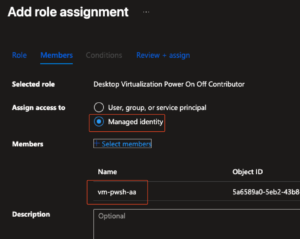
After deployment, the Automation Account’s managed identity must be granted the Desktop Virtualization Power On Off Contributor role on the subscription or resource groups where VM power management should be applied.
Link: View on GitHub
<#
.SYNOPSIS
    Automated Azure VM power management script for scheduled start/stop operations.

.DESCRIPTION
    This PowerShell script provides automated power management
    for Azure Virtual Machines across multiple subscriptions.
    It supports scheduled start and stop operations with flexible
    exclusion rules using VM tags and day-of-week filtering.
    The script is designed to run in Azure Automation Runbooks
    using Managed Identity authentication.

    Important: It is built for getting triggered by an hourly schedule.

.PARAMETER TimeZone
    Sets the default timezone if the VM does not have the timezone specific tag.
    It defines the time zone these hours refer to.
    Default: "W. Europe Standard Time"

.NOTES
    File Name      : AzVM-PowerManagement.ps1
    Version        : 2.0.0
    Author         : Simon Vedder
    Date           : 06.12.2025
    Prerequisite   : Azure PowerShell modules, Managed Identity with appropriate permissions

    Required Permissions:
    - Desktop Virtualization Power On Off Contributor (40c5ff49-9181-41f8-ae61-143b0e78555e)

    VM Tag Controls:
    - AutoShutdown              :   "<StartNumber>-<EndNumber>"
      - 24h-format e.g. 8-18 (Starts at 8 and ends at 18)
    - AutoShutdown-TimeZone     :   "W. Europe Standard Time"
      - TimeZone specifies which time zone these hours apply to
      (https://learn.microsoft.com/en-us/windows-hardware/manufacture/desktop/default-time-zones)
    - AutoShutdown-SkipUntil    :   "yyyy-mm-dd"
      - Skip VM until specified date
    - AutoShutdown-ExcludeOn    :   "yyyy-mm-dd"
      - Exclude VM on specific date only
    - AutoShutdown-ExcludeDays  :   "Monday,Tuesday,Wednesday"
      - Exclude VM on specific weekdays

.INPUTS
    None. This script does not accept pipeline input.

.OUTPUTS
    Console output with detailed logging of all operations performed.
    Returns summary statistics of processed, actioned, skipped, and error VMs.

.LINK
    https://docs.microsoft.com/en-us/azure/automation/
    https://docs.microsoft.com/en-us/azure/virtual-machines/
    https://learn.microsoft.com/en-us/windows-hardware/manufacture/desktop/default-time-zones
#>

param(
    [Parameter(Mandatory=$false)]
    [string]$TimeZone = "W. Europe Standard Time"
)

# Function
function Write-Log {
    param([string]$Message, [string]$Level = "INFO")
    $timestamp = Get-Date -Format "yyyy-MM-dd HH:mm:ss"
    Write-Output "[$timestamp] [$Level] $Message"
}

# Main Function
try {
    Write-Log "Starting VM Power Management Script - Action: $Action"

    # check date and weekday
    $currentDate = Get-Date
    $currentDayOfWeek = $currentDate.DayOfWeek.ToString()

    Write-Log "Current Date: $($currentDate.ToString('yyyy-MM-dd')), Day: $currentDayOfWeek"

    # Login with managed identity
    Write-Log "Connecting to Azure using Managed Identity..."
    try {
        $null = Connect-AzAccount -Identity -ErrorAction Stop
        Write-Log "Successfully connected to Azure"
    }
    catch {
        Write-Log "Failed to connect to Azure: $($_.Exception.Message)" "ERROR"
        throw
    }

    # Get subscription context
    $context = Get-AzContext
    Write-Log `
    "Initially connected to Subscription: `
    $($context.Subscription.Name) ($($context.Subscription.Id))"

    $targetSubscriptions = Get-AzSubscription
    Write-Log "Found $($targetSubscriptions.Count) available Subscriptions"

    # Statistics
    $processedVMs = 0
    $skippedVMs = 0
    $errorVMs = 0
    $startedVMs = 0
    $stoppedVMs = 0


    foreach ($subscription in $targetSubscriptions) {
        Write-Log "Processing Subscription: $($subscription.Name) ($($subscription.Id))"

        try {
            # Switch subscriptions
            $null = Set-AzContext -SubscriptionId $subscription.Id -ErrorAction Stop
            Write-Log "Switched to Subscription: $($subscription.Name)"

            # Get VMs of this subscription
            $vms = Get-AzVM -ErrorAction Stop `
            | Where-Object { $_.Tags.ContainsKey("AutoShutdown") }

            Write-Log "Found $($vms.Count) VMs in Subscription: $($subscription.Name)"

            foreach ($vm in $vms) {
                $processedVMs++
                $vmName = $vm.Name
                $vmResourceGroup = $vm.ResourceGroupName

                # Get VM Tags
                $vmTags = $vm.Tags
                if ($null -eq $vmTags) {
                    $vmTags = @{}
                }

                # Set TimeZone VM specific
                $targetTimeZone = if($vmTags["AutoShutdown-TimeZone"]) {
                    $vmTags["AutoShutdown-TimeZone"]
                } else {
                    $TimeZone
                }

                # Validate TimeZone exists
                try {
                    Set-TimeZone -Name $targetTimeZone -PassThru | Out-Null
                    $currentTimeZone = (Get-TimeZone).StandardName
                }
                catch {
                    Write-Log `
                    "Skipping VM: $vmName - Invalid TimeZone '$targetTimeZone'" `
                    "WARNING"
                    $skippedVMs++
                    continue
                }

                $currentHour = (Get-Date).Hour

                # Set the Action by splitting the tag and
                # compare the values position with the current hour variable
                if (($vmTags["AutoShutdown"] -split "-")[0] -eq $currentHour) {
                    $Action = "Start"
                }
                elseif (($vmTags["AutoShutdown"] -split "-")[1] -eq $currentHour) {
                    $Action = "Stop"
                }
                else {
                    Write-Log `
                    "Skipping VM: $vmName skipped due to a different schedule `n
                    (TimeZone: $currentTimeZone, CurrentHour: $currentHour)" `
                    "INFO"
                    $skippedVMs++
                    continue
                }


                Write-Log `
                "Processing VM: $vmName (RG: $vmResourceGroup, `n
                Action: $Action, TimeZone: $currentTimeZone, CurrentHour: $currentHour)"

                # Check Weekday-based exclusion
                if ($vmTags.ContainsKey("AutoShutdown-ExcludeDays") `
                -and $vmTags["AutoShutdown-ExcludeDays"] -ne "") {
                    $excludedDaysValue = $vmTags["AutoShutdown-ExcludeDays"]
                    $vmExcludedDays = $excludedDaysValue -split ","
                    $vmExcludedDays = $vmExcludedDays | ForEach-Object { $_.Trim() }

                    if ($vmExcludedDays -contains $currentDayOfWeek) {
                        Write-Log `
                        "VM $vmName : Skipped due to AutoShutdown-ExcludeDays tag `n
                        (Today: $currentDayOfWeek)" `
                        "WARNING"
                        $skippedVMs++
                        continue
                    }
                }

                # Date-based exlusion
                $skipUntilDate = $null
                $excludeDate = $null

                # Check Skip-Until Tag (temporary skip until the entered date)
                if ($vmTags.ContainsKey("AutoShutdown-SkipUntil") `
                -and $vmTags["AutoShutdown-SkipUntil"] -ne "") {
                    $skipUntilValue = $vmTags["AutoShutdown-SkipUntil"]
                    try {
                        $skipUntilDate = [DateTime]::ParseExact($skipUntilValue, `
                        "yyyy-MM-dd", $null)
                        if ($currentDate.Date -le $skipUntilDate.Date) {
                            Write-Log `
                            "VM $vmName : Skipped until `n
                            $($skipUntilDate.ToString('yyyy-MM-dd'))" `
                            "WARNING"
                            $skippedVMs++
                            continue
                        } else {
                            Write-Log "VM $vmName : SkipUntil date `n
                            ($($skipUntilDate.ToString('yyyy-MM-dd'))) has passed, `n
                            processing normally"
                        }
                    }
                    catch {
                        Write-Log "VM $vmName : `
                        Invalid SkipUntil date format: $skipUntilValue" "WARNING"
                    }
                }

                # Check Exclude-On Tag (exclusion at a specific date)
                if ($vmTags.ContainsKey("AutoShutdown-ExcludeOn") `
                -and $vmTags["AutoShutdown-ExcludeOn"] -ne "") {
                    $excludeOnValue = $vmTags["AutoShutdown-ExcludeOn"]
                    try {
                        $excludeDate = [DateTime]::ParseExact($excludeOnValue, `
                        "yyyy-MM-dd", $null)
                        if ($currentDate.Date -eq $excludeDate.Date) {
                            Write-Log `
                            "VM $vmName : Excluded today due to ExcludeOn tag `n
                            ($($excludeDate.ToString('yyyy-MM-dd')))" `
                            "WARNING"
                            $skippedVMs++
                            continue
                        }
                    }
                    catch {
                        Write-Log `
                        "VM $vmName : Invalid ExcludeOn date format: $excludeOnValue" `
                        "WARNING"
                    }
                }

                # Get VM State
                try {
                    $vmStatus = Get-AzVM -ResourceGroupName $vmResourceGroup `
                    -Name $vmName -Status -ErrorAction Stop
                    $powerState = ($vmStatus.Statuses | `
                    Where-Object { $_.Code -like "PowerState/*" }).Code

                    Write-Log "VM $vmName : Current state: $powerState"

                    # Action based on the specification and current state
                    $shouldPerformAction = $false

                    if ($Action -eq "Stop") {
                        if ($powerState -eq "PowerState/running") {
                            $shouldPerformAction = $true
                        } else {
                            Write-Log `
                            "VM $vmName : Already stopped or in transition, skipping" `
                            "WARNING"
                        }
                    } elseif ($Action -eq "Start") {
                        if ($powerState -eq "PowerState/deallocated" `
                        -or $powerState -eq "PowerState/stopped") {
                            $shouldPerformAction = $true
                        } else {
                            Write-Log `
                            "VM $vmName : Already running or in transition, skipping" `
                            "WARNING"
                        }
                    }

                    if ($shouldPerformAction) {
                        Write-Log "VM $vmName : Performing $Action action..."

                        if ($Action -eq "Stop") {
                            $result = Stop-AzVM -ResourceGroupName $vmResourceGroup `
                            -Name $vmName -NoWait -Force -ErrorAction Stop
                            Write-Log `
                            "VM $vmName : Successfully stopped/deallocated" `
                            "PROGRESS"
                            $stoppedVMs++
                        } elseif ($Action -eq "Start") {
                            $result = Start-AzVM -ResourceGroupName $vmResourceGroup `
                            -Name $vmName -NoWait -ErrorAction Stop
                            Write-Log "VM $vmName : Successfully started" "PROGRESS"
                            $startedVMs++
                        }

                    } else {
                        $skippedVMs++
                    }
                }
                catch {
                    Write-Log `
                    "VM $vmName : Error during $Action action: $($_.Exception.Message)" `
                    "ERROR"
                    $errorVMs++
                }
            }
        }
        catch {
            Write-Log `
            "Error processing Subscription $($subscription.Name): $($_.Exception.Message)" `
            "ERROR"
            $errorVMs++
        }
    }

    # Summary
    Write-Log "=== SUMMARY ===" "INFO"
    Write-Log "Total VMs processed: $processedVMs" "INFO"
    Write-Log "VMs started: $startedVMs" "INFO"
    Write-Log "VMs stopped: $stoppedVMs" "INFO"
    Write-Log "VMs skipped: $skippedVMs" "INFO"
    Write-Log "VMs with errors: $errorVMs" "INFO"

    Write-Log "Script completed successfully" "INFO"
}
catch {
    Write-Log "Script failed with error: $($_.Exception.Message)" "ERROR"
    Write-Log "Stack Trace: $($_.Exception.StackTrace)" "ERROR"
    throw
}Conclusion
This automation fills a gap between simple schedules and complex orchestration platforms. It gives cloud teams precise control while keeping the operational model easy to understand and maintain. For organizations with many non-production workloads, this solution can lead to substantial cost savings with minimal effort.
My Take
From a technical perspective, the design stands out because it’s practical, scalable, and built around real-world scenarios rather than idealized ones. The tag-driven approach is clean and future-proof, and the inclusion of date- and weekday-based exceptions is something even many enterprise tools don’t offer. This makes the script genuinely valuable for teams managing diverse VM fleets.
