
As a Cloud Solutions Engineer, optimizing costs and automating operations is a daily priority. One of the common challenges in Azure is managing the runtime of virtual machines—especially those used for testing, development, or training purposes. While Microsoft offers tools like StopStartV2, they can feel heavy, brittle, or overly complex for certain environments.
In this post, I’ll walk you through my lightweight, tag-driven alternative: a two-part solution that combines an Azure Automation Runbook with a PowerShell-based GUI (PowerMate) to empower both administrators and end-users to control VM runtime efficiently and intuitively.
The Problem: Unused VMs = Wasted Costs
Many teams spin up VMs for specific use cases—but forget to shut them down. Running 24/7, these instances quietly incur unnecessary costs.
While Microsoft’s StopStartV2 attempts to solve this problem, it comes with a complex configuration and sometimes unpredictable behavior in large environments.
The Solution: PowerManagement & PowerMate
I’ve built a two-part system:
- PowerManagement: An Azure Automation Runbook that auto-starts or deallocates VMs based on custom tags.
- PowerMate: A user-friendly PowerShell WPF GUI that allows users to skip shutdowns or manually deallocate their VM—without admin rights.
Let’s break them down.
Part 1: PowerManagement (Azure Runbook)
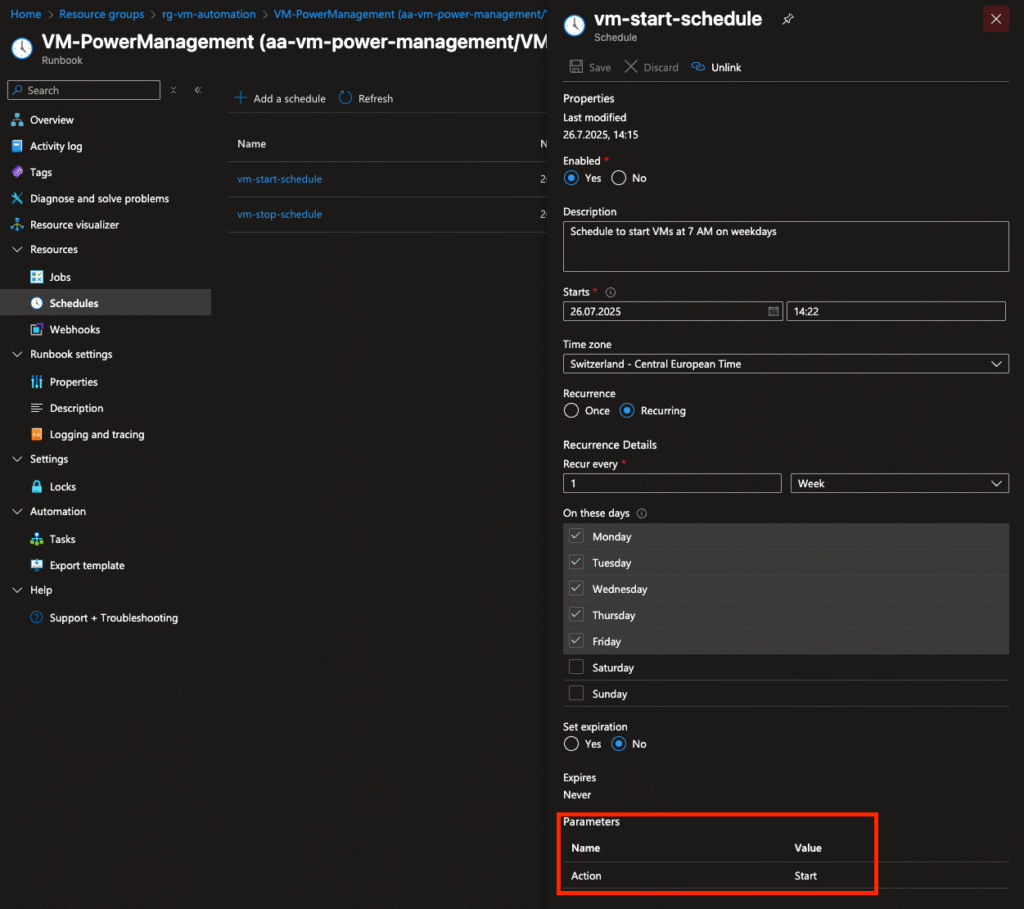
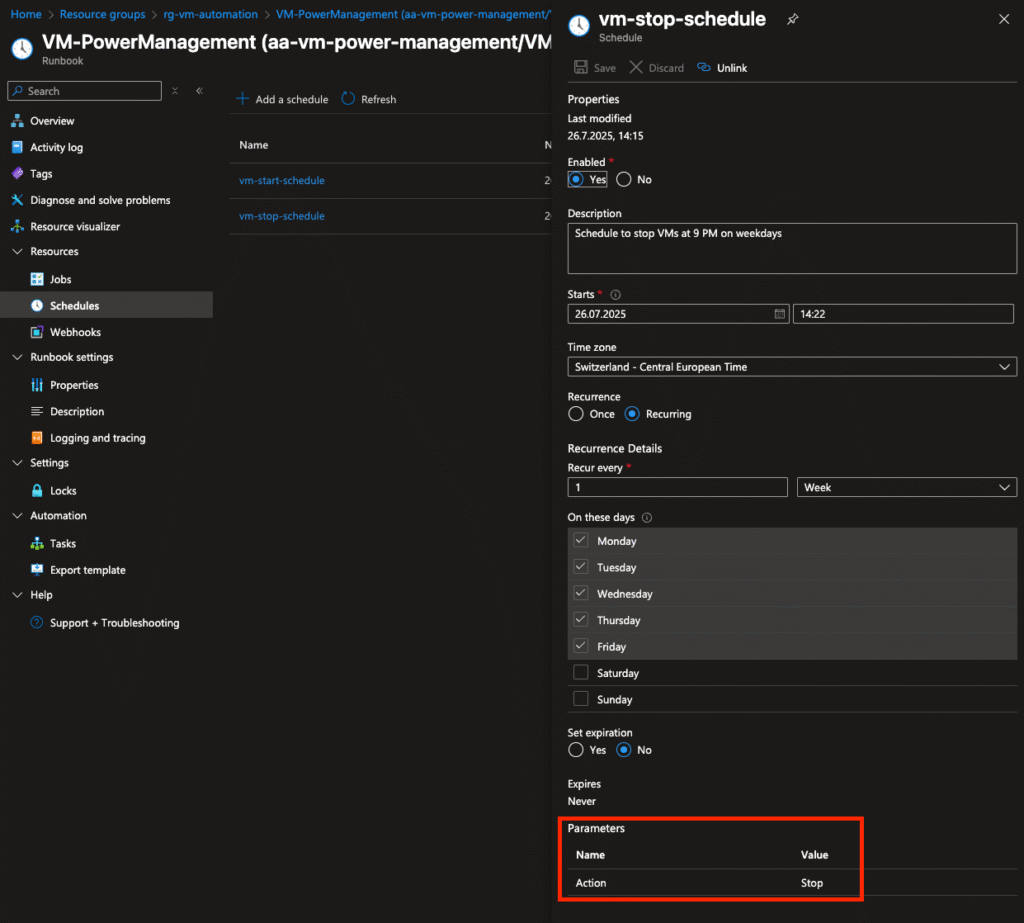
The core logic lives in an Azure Automation Account and is executed on a schedule using two time-based triggers:
- Morning (action=Start) → Starts all VMs
- Evening (action=Stop) → Deallocates them to reduce cost
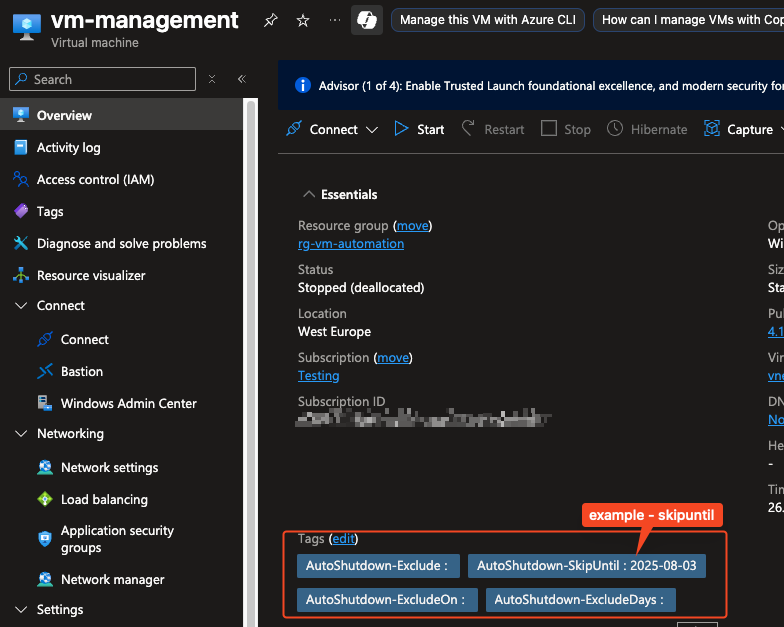
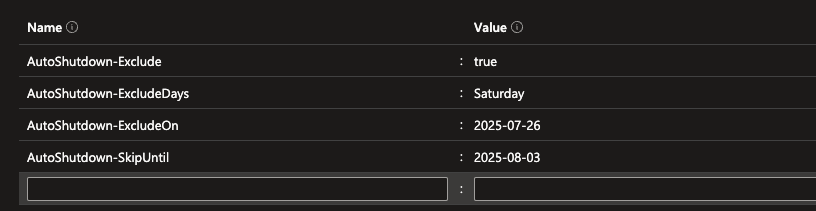
It evaluates the following custom tags:
| Tag | Description |
| AutoShutdown | Contains Start and Stop Values (e.g. 8-18) |
| AutoShutdown-TimeZone | The specified time range within AutoShutdown-tag will be applied to that time zone |
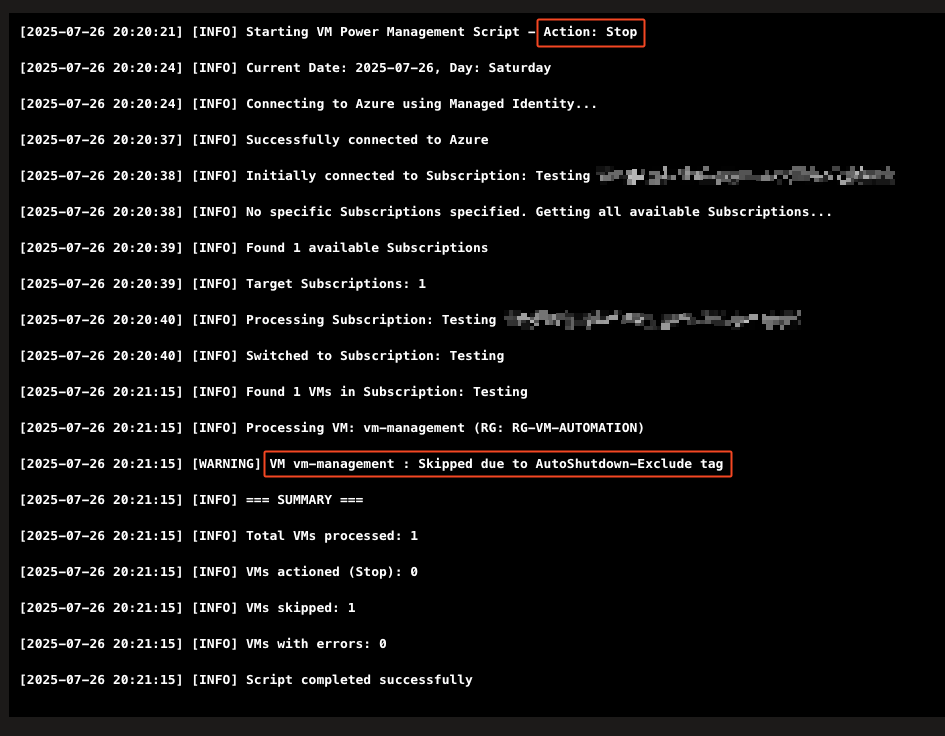
| AutoShutdown-Exclude | If true, the VM is excluded from automation entirely |
| AutoShutdown-SkipUntil | Temporarily excludes the VM until a future date |
| AutoShutdown-ExcludeOn | Skips the shutdown for a specific date (e.g., today) |
| AutoShutdown-ExcludeDays | Restricts shutdown/start only to specific weekdays |
🔐 The runbook uses System-Assigned Managed Identity with the built-in role Desktop Virtualization Power On Off Contributor
<#
.SYNOPSIS
    Automated Azure VM power management script for scheduled start/stop operations.

.DESCRIPTION
    This PowerShell script provides automated power management for Azure Virtual Machines across multiple subscriptions.
    It supports scheduled start and stop operations with flexible exclusion rules using VM tags and day-of-week filtering.
    The script is designed to run in Azure Automation Runbooks using Managed Identity authentication.

    Important: It is built for getting triggered by an hourly schedule.

.PARAMETER TimeZone
    Sets the default timezone if the VM does not have the timezone specific tag. It defines the time zone these hours refer to.
    Default: "W. Europe Standard Time"

.NOTES
    File Name      : AzVM-PowerManagement.ps1
    Version        : 2.0.0
    Author         : Simon Vedder
    Date           : 06.12.2025
    Prerequisite   : Azure PowerShell modules, Managed Identity with appropriate permissions

    Required Permissions:
    - Desktop Virtualization Power On Off Contributor (40c5ff49-9181-41f8-ae61-143b0e78555e)

    VM Tag Controls:
    - AutoShutdown              :   "<StartNumber>-<EndNumber>"     - 24h-format e.g. 8-18 (Starts at 8 and ends at 18)
    - AutoShutdown-TimeZone     :   "W. Europe Standard Time"       - TimeZone specifies which time zone these hours apply to (https://learn.microsoft.com/en-us/windows-hardware/manufacture/desktop/default-time-zones)
    - AutoShutdown-SkipUntil    :   "yyyy-mm-dd"                    - Skip VM until specified date
    - AutoShutdown-ExcludeOn    :   "yyyy-mm-dd"                    - Exclude VM on specific date only
    - AutoShutdown-ExcludeDays  :   "Monday,Tuesday,Wednesday"      - Exclude VM on specific weekdays

.INPUTS
    None. This script does not accept pipeline input.

.OUTPUTS
    Console output with detailed logging of all operations performed.
    Returns summary statistics of processed, actioned, skipped, and error VMs.

.LINK
    https://docs.microsoft.com/en-us/azure/automation/
    https://docs.microsoft.com/en-us/azure/virtual-machines/
    https://learn.microsoft.com/en-us/windows-hardware/manufacture/desktop/default-time-zones
#>

param(
    [Parameter(Mandatory=$false)]
    [string]$TimeZone = "W. Europe Standard Time"
)

# Function
function Write-Log {
    param([string]$Message, [string]$Level = "INFO")
    $timestamp = Get-Date -Format "yyyy-MM-dd HH:mm:ss"
    Write-Output "[$timestamp] [$Level] $Message"
}

# Main Function
try {
    Write-Log "Starting VM Power Management Script - Action: $Action"

    # check date and weekday
    $currentDate = Get-Date
    $currentDayOfWeek = $currentDate.DayOfWeek.ToString()

    Write-Log "Current Date: $($currentDate.ToString('yyyy-MM-dd')), Day: $currentDayOfWeek"

    # Login with managed identity
    Write-Log "Connecting to Azure using Managed Identity..."
    try {
        $null = Connect-AzAccount -Identity -ErrorAction Stop
        Write-Log "Successfully connected to Azure"
    }
    catch {
        Write-Log "Failed to connect to Azure: $($_.Exception.Message)" "ERROR"
        throw
    }

    # Get subscription context
    $context = Get-AzContext
    Write-Log "Initially connected to Subscription: $($context.Subscription.Name) ($($context.Subscription.Id))"

    $targetSubscriptions = Get-AzSubscription
    Write-Log "Found $($targetSubscriptions.Count) available Subscriptions"

    # Statistics
    $processedVMs = 0
    $skippedVMs = 0
    $errorVMs = 0
    $startedVMs = 0
    $stoppedVMs = 0


    foreach ($subscription in $targetSubscriptions) {
        Write-Log "Processing Subscription: $($subscription.Name) ($($subscription.Id))"

        try {
            # Switch subscriptions
            $null = Set-AzContext -SubscriptionId $subscription.Id -ErrorAction Stop
            Write-Log "Switched to Subscription: $($subscription.Name)"

            # Get VMs of this subscription
            $vms = Get-AzVM -ErrorAction Stop | Where-Object { $_.Tags.ContainsKey("AutoShutdown") }

            Write-Log "Found $($vms.Count) VMs in Subscription: $($subscription.Name)"

            foreach ($vm in $vms) {
                $processedVMs++
                $vmName = $vm.Name
                $vmResourceGroup = $vm.ResourceGroupName

                # Get VM Tags
                $vmTags = $vm.Tags
                if ($null -eq $vmTags) {
                    $vmTags = @{}
                }

                # Set TimeZone VM specific
                $targetTimeZone = if($vmTags["AutoShutdown-TimeZone"]) {
                    $vmTags["AutoShutdown-TimeZone"]
                } else {
                    $TimeZone
                }

                # Validate TimeZone exists
                try {
                    Set-TimeZone -Name $targetTimeZone -PassThru | Out-Null
                    $currentTimeZone = (Get-TimeZone).StandardName
                }
                catch {
                    Write-Log "Skipping VM: $vmName - Invalid TimeZone '$targetTimeZone'" "WARNING"
                    $skippedVMs++
                    continue
                }

                $currentHour = (Get-Date).Hour

                # Set the Action by splitting the tag and compare the values position with the current hour variable
                if (($vmTags["AutoShutdown"] -split "-")[0] -eq $currentHour) {
                    $Action = "Start"
                }
                elseif (($vmTags["AutoShutdown"] -split "-")[1] -eq $currentHour) {
                    $Action = "Stop"
                }
                else {
                    Write-Log "Skipping VM: $vmName skipped due to a different schedule (TimeZone: $currentTimeZone, CurrentHour: $currentHour)" "INFO"
                    $skippedVMs++
                    continue
                }


                Write-Log "Processing VM: $vmName (RG: $vmResourceGroup, Action: $Action, TimeZone: $currentTimeZone, CurrentHour: $currentHour)"

                # Check Weekday-based exclusion
                if ($vmTags.ContainsKey("AutoShutdown-ExcludeDays") -and $vmTags["AutoShutdown-ExcludeDays"] -ne "") {
                    $excludedDaysValue = $vmTags["AutoShutdown-ExcludeDays"]
                    $vmExcludedDays = $excludedDaysValue -split ","
                    $vmExcludedDays = $vmExcludedDays | ForEach-Object { $_.Trim() }

                    if ($vmExcludedDays -contains $currentDayOfWeek) {
                        Write-Log "VM $vmName : Skipped due to AutoShutdown-ExcludeDays tag (Today: $currentDayOfWeek)" "WARNING"
                        $skippedVMs++
                        continue
                    }
                }

                # Date-based exlusion
                $skipUntilDate = $null
                $excludeDate = $null

                # Check Skip-Until Tag (temporary skip until the entered date)
                if ($vmTags.ContainsKey("AutoShutdown-SkipUntil") -and $vmTags["AutoShutdown-SkipUntil"] -ne "") {
                    $skipUntilValue = $vmTags["AutoShutdown-SkipUntil"]
                    try {
                        $skipUntilDate = [DateTime]::ParseExact($skipUntilValue, "yyyy-MM-dd", $null)
                        if ($currentDate.Date -le $skipUntilDate.Date) {
                            Write-Log "VM $vmName : Skipped until $($skipUntilDate.ToString('yyyy-MM-dd'))" "WARNING"
                            $skippedVMs++
                            continue
                        } else {
                            Write-Log "VM $vmName : SkipUntil date ($($skipUntilDate.ToString('yyyy-MM-dd'))) has passed, processing normally"
                        }
                    }
                    catch {
                        Write-Log "VM $vmName : Invalid SkipUntil date format: $skipUntilValue" "WARNING"
                    }
                }

                # Check Exclude-On Tag (exclusion at a specific date)
                if ($vmTags.ContainsKey("AutoShutdown-ExcludeOn") -and $vmTags["AutoShutdown-ExcludeOn"] -ne "") {
                    $excludeOnValue = $vmTags["AutoShutdown-ExcludeOn"]
                    try {
                        $excludeDate = [DateTime]::ParseExact($excludeOnValue, "yyyy-MM-dd", $null)
                        if ($currentDate.Date -eq $excludeDate.Date) {
                            Write-Log "VM $vmName : Excluded today due to ExcludeOn tag ($($excludeDate.ToString('yyyy-MM-dd')))" "WARNING"
                            $skippedVMs++
                            continue
                        }
                    }
                    catch {
                        Write-Log "VM $vmName : Invalid ExcludeOn date format: $excludeOnValue" "WARNING"
                    }
                }

                # Get VM State
                try {
                    $vmStatus = Get-AzVM -ResourceGroupName $vmResourceGroup -Name $vmName -Status -ErrorAction Stop
                    $powerState = ($vmStatus.Statuses | Where-Object { $_.Code -like "PowerState/*" }).Code

                    Write-Log "VM $vmName : Current state: $powerState"

                    # Action based on the specification and current state
                    $shouldPerformAction = $false

                    if ($Action -eq "Stop") {
                        if ($powerState -eq "PowerState/running") {
                            $shouldPerformAction = $true
                        } else {
                            Write-Log "VM $vmName : Already stopped or in transition, skipping" "WARNING"
                        }
                    } elseif ($Action -eq "Start") {
                        if ($powerState -eq "PowerState/deallocated" -or $powerState -eq "PowerState/stopped") {
                            $shouldPerformAction = $true
                        } else {
                            Write-Log "VM $vmName : Already running or in transition, skipping" "WARNING"
                        }
                    }

                    if ($shouldPerformAction) {
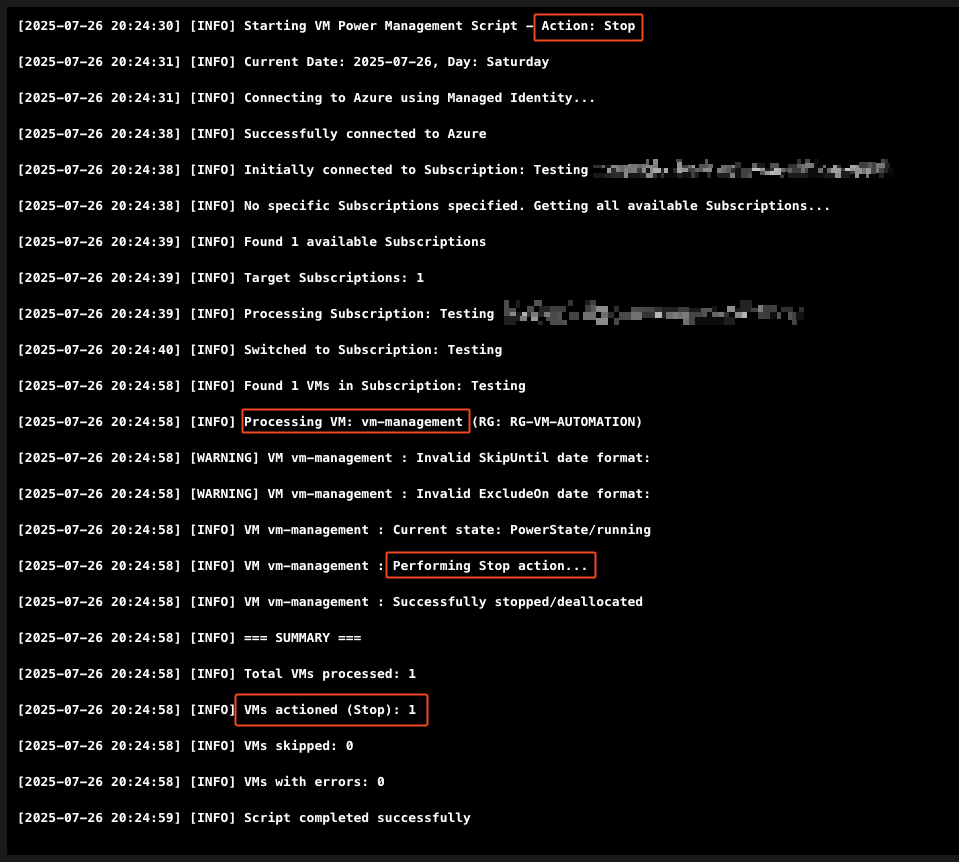
                        Write-Log "VM $vmName : Performing $Action action..."

                        if ($Action -eq "Stop") {
                            $result = Stop-AzVM -ResourceGroupName $vmResourceGroup -Name $vmName -NoWait -Force -ErrorAction Stop
                            Write-Log "VM $vmName : Successfully stopped/deallocated" "PROGRESS"
                            $stoppedVMs++
                        } elseif ($Action -eq "Start") {
                            $result = Start-AzVM -ResourceGroupName $vmResourceGroup -Name $vmName -NoWait -ErrorAction Stop
                            Write-Log "VM $vmName : Successfully started" "PROGRESS"
                            $startedVMs++
                        }

                    } else {
                        $skippedVMs++
                    }
                }
                catch {
                    Write-Log "VM $vmName : Error during $Action action: $($_.Exception.Message)" "ERROR"
                    $errorVMs++
                }
            }
        }
        catch {
            Write-Log "Error processing Subscription $($subscription.Name): $($_.Exception.Message)" "ERROR"
            $errorVMs++
        }
    }

    # Summary
    Write-Log "=== SUMMARY ===" "INFO"
    Write-Log "Total VMs processed: $processedVMs" "INFO"
    Write-Log "VMs started: $startedVMs" "INFO"
    Write-Log "VMs stopped: $stoppedVMs" "INFO"
    Write-Log "VMs skipped: $skippedVMs" "INFO"
    Write-Log "VMs with errors: $errorVMs" "INFO"

    Write-Log "Script completed successfully" "INFO"
}
catch {
    Write-Log "Script failed with error: $($_.Exception.Message)" "ERROR"
    Write-Log "Stack Trace: $($_.Exception.StackTrace)" "ERROR"
    throw
}Runbook Setup with Terraform or ARM
You can deploy the entire setup using one of two options:
1. Terraform
Full environment:
- Automation Account with Managed Identity
- Custom role & role assignment
- Runbook Upload
- Schedules (Start & Stop)
- additional: User Assigned Managed Identity for VMs with an custom role
- additional: VM example
2. ARM Template (minimal: Automation Account + Runbook + Schedules)
Minimal:
- Automation Account
- Role assignment
- Runbook Upload
- Schedule

Part 2: PowerMate (WPF GUI for Users)
For end users (e.g., developers, testers), I built PowerMate—a lightweight GUI written in PowerShell using WPF and optionally packaged via ps2exe.
🔍 Main features:
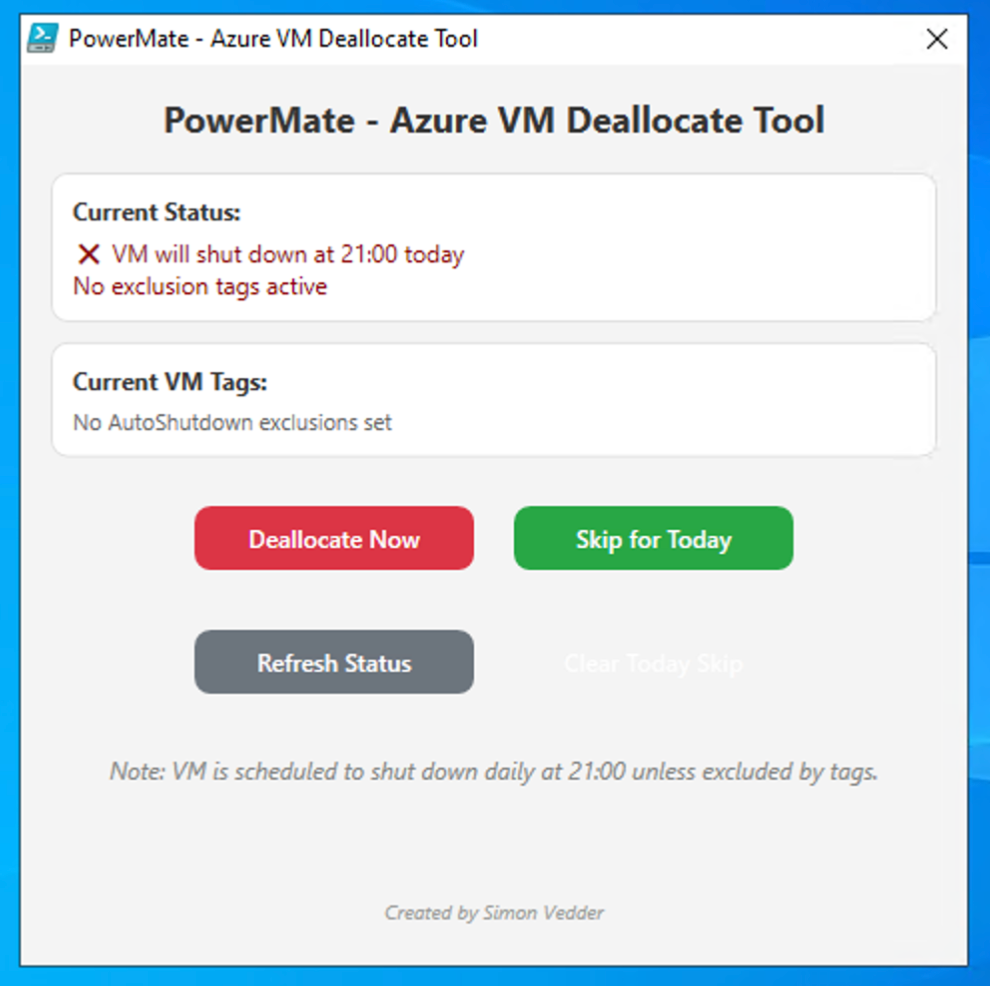
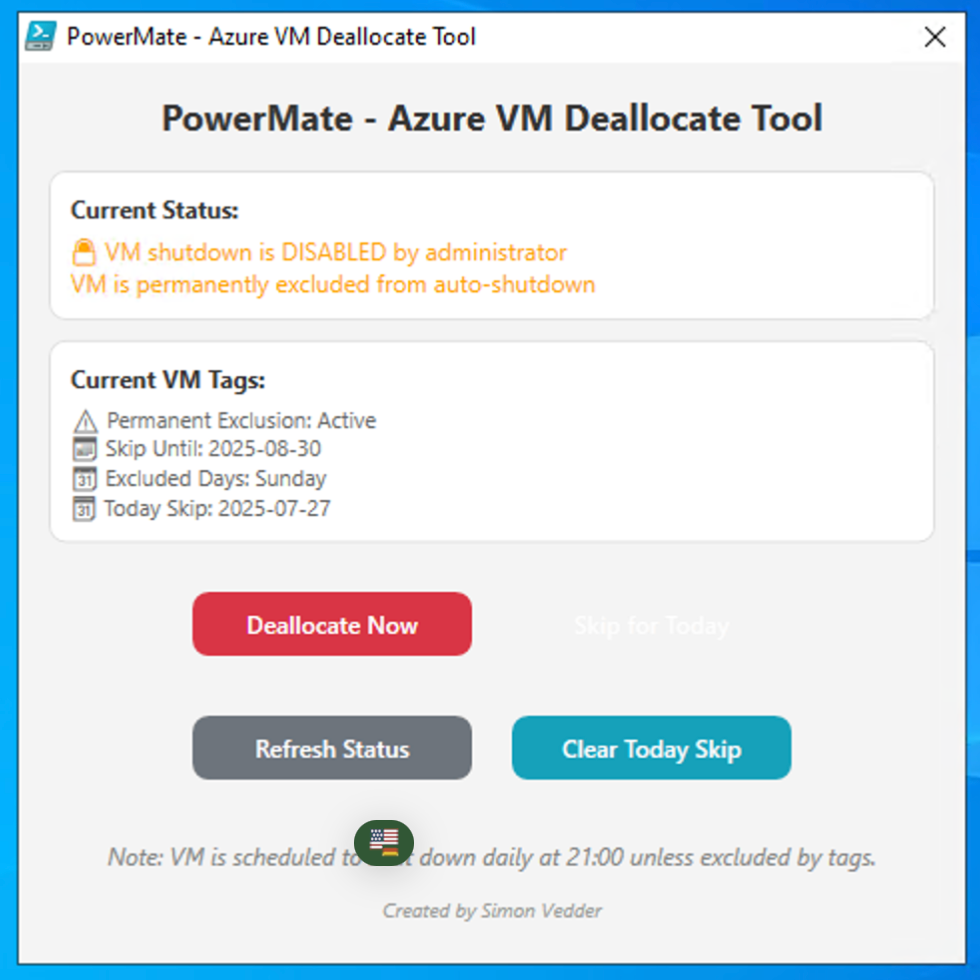
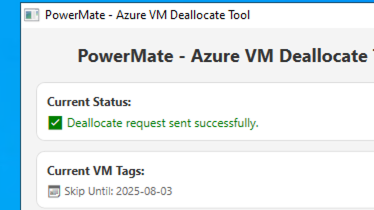
- Tag Status Overview: Displays current tag values set on the VM.
- Skip Today: Adds today’s date to AutoShutdown-ExcludeOn (to avoid auto-deallocation).
- Deallocate Now: Manually deallocates the VM to save cost instantly.
- Refresh: Reloads tag data.
- Clear Skip: Clears the ExcludeOn tag value.
Tag-based overview
Deallocation process
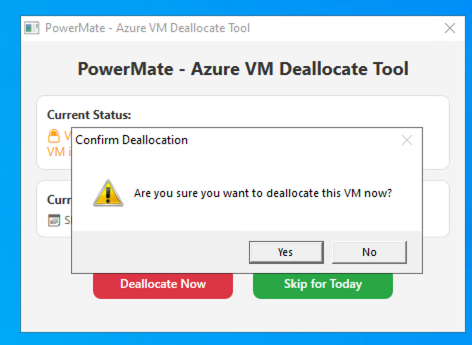
PowerMate uses Azure PowerShell module to authenticate with Managed Identity and query or update VM metadata. It can be:
- Copied to VMs via Azure Image/Custom Script,
- Executed as .ps1 or compiled .exe,
- Used by non-admins as long as permissions are properly scoped.
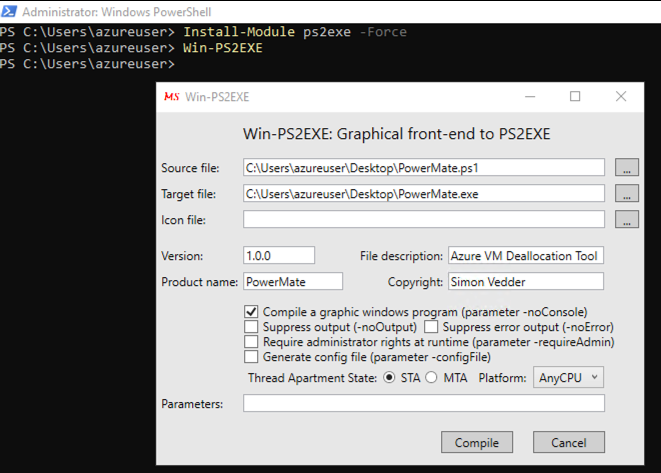
I compiled it for you with PS2EXE ready to use for you:
Architecture Overview
                +---------------------+
                |  Azure Automation   |
                |   Runbook Engine    |
                +----------+----------+
                           |
          +-------------------------------+
          | Checks tags, filters VMs,     |
          | executes Start/Stop actions   |
          +-------------------------------+
                           |
      +--------------------+------------------+
      |                                       |
+------------+                        +---------------+
| VM1 with Tags| ←←←←←←←←←←←←←←←←←←←←←|   PowerMate    |
+------------+                        +---------------+
| AutoShutdown-...                    | Read/Write Tags
|                                     | Manual Dealloc
+------------+                        +---------------+
Summary: Why This Is a Better Fit
| Feature | StartStopV2 | PowerManagement + PowerMate |
| Tag-Based Control | ✅ (complex) | ✅ (simple & extendable) |
| Managed Identity | ✅ | ✅ (with custom RBAC) |
| GUI for End Users | ❌ | ✅ (PowerMate WPF) |
| Extensible Tags | ❌ (hardcoded) | ✅ (e.g., weekdays, skipUntil) |
| Ease of Deployment | ✅ (ARM) | ✅ (ARM / Terraform) |
| Open Source Customization | 🔒 | ✅ |
Resources
- PowerManagement Script: Link
- Terraform Deployment: Folder
- ARM Template: Link
- PowerMate Source (PowerShell): Source
- Questions or Feedback? Reach out via LinkedIn or leave a comment!
Final Thoughts
This solution was born from necessity—balancing automation with user flexibility and clean cloud governance. With tags as the core control mechanism and a GUI for human override, this setup is simple to maintain, secure to run, and intuitive to use.
Let me know what you think or if you’d like to contribute or improve this project together!
Screenshots
Leave a Reply