
Windows LAPS handles domain-joined machines. Entra login removes the local credential entirely. This is about the machines neither one reaches, and a PowerShell module that rotates their passwords and SSH keys from a single signal: the expiry date on a Key Vault secret.
The account nobody owns
Every estate I’ve worked in has the same handful of machines. A jump host in a DMZ, a build agent that is older than the current platform team, an appliance that was moved out of a datacenter and never touched again. They are not domain-joined. They are not Entra-joined. Somebody set a local administrator password during provisioning, wrote it down somewhere, and moved on.
That “somewhere” is usually a spreadsheet, a wiki page, or the memory of a person who has since changed teams. The password itself is often years old. It is the same on more machines than anyone would admit, because whoever built the second machine copied the value from the first.
The uncomfortable part is not that the password is old. It is that nobody can say who has it. There is no read log, no checkout, no expiry. When a contractor leaves the project, the honest answer to “does he still have access to that box” is a shrug.
I kept running into this, and the answers on offer did not fit. So I built the thing I wanted, deployed it into my own tenant, and then spent a day trying to break it.
Use LAPS or Entra login where you can
The platform is not blind here, and most machines have a better answer than mine.
Windows LAPS is the right tool for domain-joined and Entra-joined Windows. It is built in, it is free, it rotates after use, and it stores the password where the directory can control who reads it. If your machine can use LAPS, use LAPS.
Entra login for Azure VMs is better still, because it removes the local credential instead of managing it. No password to rotate beats a rotated password. I have written about the policy gap around enabling it at scale and about how it behaves through Bastion. Where it reaches, it wins.
A PAM product solves checkout and session brokering properly, if you have one and the machine is in scope.
Four situations fall through all of that:
- The machine is standalone Windows. LAPS needs a directory, and there is none.
- The machine is Linux. LAPS has nothing to say, and the SSH key on it has never been replaced.
- The extension cannot reach the Entra endpoints from a segmented network, so Entra login is off the table.
- The machine is old, fragile, and nobody wants to install an agent that changes its login path.
Those are the machines this is for, and they are the ones most likely to be sitting on a five-year-old password.
For the rest, there is AzureVMCredentialRotation
AzureVMCredentialRotation is a PowerShell module on the Gallery. An optional Bicep deployment, the orchestrator, runs it for you on a schedule. The module does one job: replace the local administrator password of a VM, on Linux the SSH key as well, and store the new value in Key Vault. The full documentation, the deployment guide and the command reference live on the tool page; this post is the story behind it.
Run it against one machine, and it rotates that machine and nothing else. Deploy the orchestrator, and an Automation Account picks the machines by tag, the same discovery pattern I used for tag-driven VM power management, and hands them to the same module.
With it you can:
- rotate the local administrator password of a Windows or Linux VM, by hand or on a schedule
- rotate the SSH key on a Linux VM, with the public key stored beside the private one
- rotate a credential a few hours after someone has read it out of the vault
- see in a Log Analytics workbook who read which credential, and when it was replaced afterwards
The module never decides anything on its own. Machines, reads and destinations arrive as arguments. The policy about which machines are in scope lives in the orchestrator, which is what lets the same code run against one machine from a laptop and against a fleet on a schedule.
The rest of this post is how it works inside, because that is what I would want to know before I let a tool change passwords on my machines.
Two ways to run it
The module alone is enough for a handful of machines. Install it from the Gallery, sign in with an account that has Key Vault Secrets Officer on the vault and Virtual Machine Contributor on the VM, and run it against one named machine. Nothing is deployed, and nothing is tagged. That is also the right way to try it.
The orchestrator is for the fleet. It is a Bicep deployment that adds one Automation Account and connects it to your vault, your VMs and, if you want, Log Analytics. Everything else in this section is about that case.
Four things are involved, and only one of them is new.
- Your Key Vault. One secret per credential, named
{vm}-{user}-{kind}:jump-01-labadmin-pwfor the password,-ssh-privand-ssh-pubfor the Linux key pair. The expiry date on each secret is the schedule. Nothing else holds state. - An Automation Account. This is the new part. It has a managed identity, the module imported from the Gallery, one runbook, and a schedule that starts it every six hours. The identity gets Key Vault Secrets Officer on the vault and Virtual Machine Contributor on the resource groups you name, and nothing wider.
- The VMs you tag.
CredentialRotation=enabledputs a machine in scope. A second tag puts it on hold without taking it out. - Log Analytics, optional. The vault’s audit log lands in
AZKVAuditLogs, every rotation writes a record toCredentialRotation_CL, and a workbook reads both. Without it the runbook still rotates by age; it just cannot see reads.
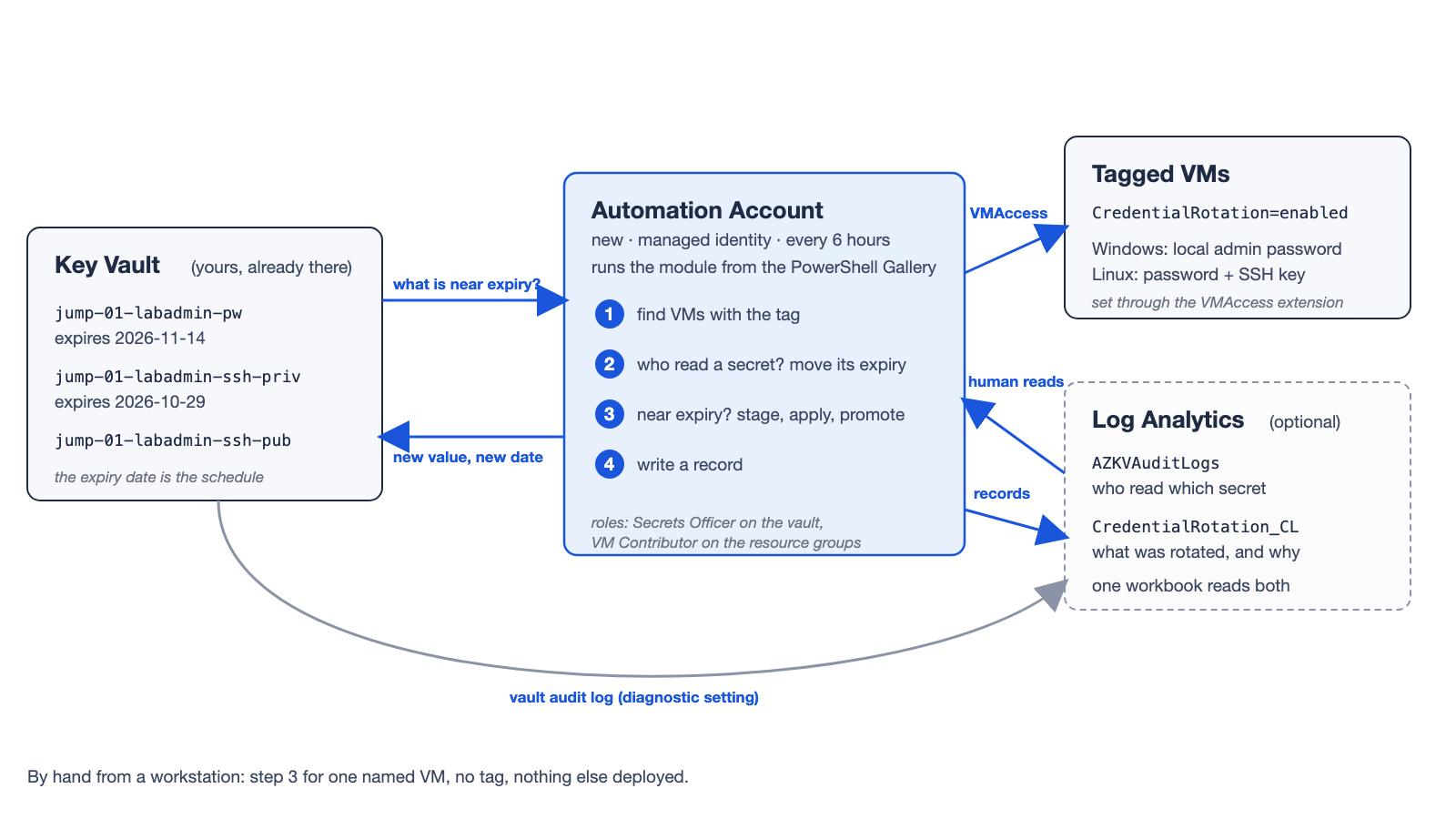
Every six hours the runbook does the same four steps.
- Find the machines in scope: every VM with the tag, in the resource groups or subscriptions you named.
- Ask Log Analytics who read a secret since the last run. For each one, move the expiry date to eight hours from now. This step only exists with the optional part.
- For every machine, read the expiry date of its secret. Within 14 days, or no secret yet: generate a new value, stage it in the vault, set it on the VM through the VMAccess extension, promote it, and write the new expiry date 90 days out.
- Write a record of what happened and why: age, a read, a missing secret, or a staged value from a run that crashed.
In practice that looks like this. Someone reads a password at 09:00. At 09:05 the read is in the audit log. The 12:00 run sees it and sets the expiry to 20:00. The 18:00 run finds a secret inside the threshold and replaces it. The worst case between a read and its replacement is the grace period plus the schedule interval, 14 hours with the defaults.
Two reasons to rotate, one date
A credential gets replaced for two reasons. It is old, or somebody has used it. The module handles both through the same thing: the expiry date on the Key Vault secret.
The first reason is simple. Every secret the module manages has an expiry date, 90 days out by default. On every scheduled pass, the module checks that date. If it is within the threshold, 14 days by default, the credential is rotated. If not, nothing happens.
The second reason is the interesting one. When someone reads a credential out of the vault to log in to a machine, that credential is spent. It has been in a clipboard, in a terminal, maybe in a screen share. It should be replaced soon. Not immediately, because the person is probably still using it.
The usual way to build that is a second mechanism: an event subscription, a queue, a delayed job. I did not want a second mechanism. Instead, the orchestrator looks for human reads in the Key Vault audit log, and for every secret that was read it moves the expiry date to eight hours from now. That is what the module’s Register-CredentialAccess command does:
# $reads comes from the Key Vault audit log: one row per secret a human has read
$reads | Register-CredentialAccess -VaultName kv-creds -GracePeriodHours 8From that moment the secret looks like any other secret that is about to expire, and the next scheduled pass replaces it. No second code path, no timer to test, and the audit trail still shows that this rotation was caused by a read, not by age.
That is the design rule behind the whole module: every reason to rotate becomes a date on the secret. When something goes wrong, there is exactly one thing to look at.
Why the write order is the whole safety story
The obvious way to do this is to change the password on the VM first, then store it in Key Vault. That order has a failure mode that ends your evening: the VM accepts the new password, the write to the vault fails on a throttle or an expired role assignment, and the machine now has a credential nobody knows.
The module stages first. Staging means the new value goes into Key Vault under a temporary name before the machine is touched, so the vault always knows the password the VM is about to get. Take the password of jump-01 as the example. Its secret is jump-01-labadmin-pw.
- Write the new value to a staging secret next to it,
jump-01-labadmin-pw-pending, taggedState=pending - Apply it to the VM through the VMAccess extension
- Write it to the real secret,
jump-01-labadmin-pw, with the real expiry date - Overwrite the staging secret with a placeholder, tagged
State=consumed
Crash anywhere in that sequence and the value is still in the vault. Die between steps two and three, and the next run finds an open staging secret, applies the same value to the machine again, which is safe to repeat, and promotes it. Whoever reads the live secret only ever gets a value the VM has already accepted.
The staging secret is overwritten, not deleted or disabled, and that detail cost me a live run to learn. Deleting reserves the name under soft-delete, so the next rotation fails writing to it.
Disabling is worse. Reads then return Operation get is not allowed on a disabled secret, a 403 that looks exactly like a missing role assignment, and one disabled staging secret stopped discovery for an entire subscription. Overwriting keeps the metadata readable and the name usable.
What the extension does to your machine, beyond the password
This is the part I would want to read before deploying someone else’s rotation tool, so here it is for mine.
Credentials reach the guest through the VMAccess extension, which means the identity running the module needs Virtual Machine Contributor. That role includes installing extensions, which is code execution as SYSTEM or root on every machine in scope. There is no narrower path: setting a credential on a running VM has no lower-privilege API.
The extension also does two things that have nothing to do with your password.
It recreates the account if it is gone. VMAccess takes the username from the VM’s OS profile. If that account no longer exists on the machine, it creates it as a local administrator.
I measured what that looks like on Windows. Rename the account inside the guest, run one rotation, and you get a second administrator, RID 1000, next to the renamed original. The rotation reports success. On Linux the same situation fails loudly instead, because useradd refuses while the renamed account still owns the uid.
On Linux it restores passwordless sudo. Every rotation writes /etc/sudoers.d/waagent:
labadmin ALL = (ALL) NOPASSWD: ALLOn a stock Ubuntu image cloud-init already granted exactly that, so nothing seems to change. On a hardened machine where somebody removed passwordless sudo on purpose, it comes back.
I checked rather than assumed: removed both sudoers files, ran one rotation, and waagent was back with NOPASSWD: ALL in it. There is no switch on the extension for this. Either those machines stay out of scope, or configuration management puts the policy back afterwards.
Neither behavior is a bug in the module. Both are things the module triggers, which makes them mine to document.
Running it against one machine first
Install the module and point it at a single VM in dry-run mode:
Install-Module AzureVMCredentialRotation
Connect-AzAccount
Invoke-CredentialRotation -VaultName kv-creds -VMName jump-01 -WhatIfDrop -WhatIf and it rotates that machine now, creating the secret in the vault if it is not there yet. That is also how you onboard a machine by hand. No tag is needed for this. The module rotates whatever machine you name; it never looks at tags.
The tag only matters for the scheduled deployment below, where it is the opt-in: the runbook picks the machines that carry it, and the module never sees the difference.
The full deployment is one subscription-scope template. It starts in dry-run mode on purpose: every scheduled pass reports what it would replace and changes nothing until you turn that off.
az deployment sub create \
  --location switzerlandnorth \
  --template-file deploy/main.bicep \
  --parameters moduleVersion=0.4.1 \
               keyVaultName=kv-credentials \
               keyVaultResourceGroupName=rg-vault \
targetResourceGroupNames='["rg-workloads"]'Nothing rotates on the schedule until you tag a machine:
az vm update --ids $VM --set tags.CredentialRotation=enabledRead the output of one run, then redeploy with dryRun=false.
What it doesn’t do (yet)
- It needs the guest agent. No agent, no rotation. A machine that is powered off is skipped and retried next pass, which is fine; a machine with a broken agent needs fixing first.
- It won’t help a hardened Linux host keep its sudo policy. See above. That is an extension behavior I can document but not prevent.
- The first onboarding wave is the slow part. A rotation costs about 35 seconds and Automation stops a job at three hours, so one job replaces roughly 300 credentials. Checking a machine with nothing due is cheap, around three seconds, so steady state scales to thousands. Tag in batches and let the schedule catch up.
- CIS Level 2 on Linux is untested, because no such marketplace image exists. Level 1 and the STIG build both passed every path.
- Rotation after use only sees human reads. Reads without a UPN claim are ignored on purpose, because rotating a credential out from under a running workload breaks it.
Where to get it
The module is on the PowerShell Gallery as AzureVMCredentialRotation. Documentation, prerequisites and the command reference: simonvedder.com/tools/azure-vm-credential-rotation. Source, the Bicep and Terraform deployments, the threat model, and a known-issues file that records what I measured rather than what I assumed: github.com/simon-vedder/azure-vm-credential-rotation. MIT licensed, PowerShell 7.2 or later.
Start in dry-run mode, on a machine you can afford to lock yourself out of.
I write about Azure identity and security at simonvedder.com. Building something similar, or think I got a detail wrong? Drop me a line.
Leave a Reply