
Microsoft documents the Windows Server in-place upgrade on Azure as a per-VM procedure with an RDP session in the middle. I wanted to know what stops it from running unattended. The answer turned out to be a single error code, and not the one I expected.
Windows Server 2016 leaves extended support on 12 January 2027. Some tenants still have machines on 2016 or 2019 that nobody wants to touch.
The application server somebody hand-configured in 2018. The box with the license tied to its hostname. The service whose installer sits on a share nobody can find anymore.
For those machines the question is not whether to move to Windows Server 2025. It is whether you rebuild or upgrade in place. I went looking for the automated in-place path, expected to find one, and did not. This post is what I found instead.
The date that forces the question
If you want to know how many machines this affects in your own tenant, the inventory comes first. I wrote about pulling the OS version off every VM at once a while back, and that query is still the fastest way to get the list.
Once you have it, the platform gives you less than you would hope. Azure Update Manager patches, but it has no upgrade classification, so a major version jump is not something you can schedule through it.
The Windows Server 2025 feature update over Windows Update exists. By Microsoft’s own announcement it arrives as an administrator clicking Download and install. Neither of those is a fleet operation.
That leaves the documented in-place upgrade, and the documentation is honest about what it is.
What the documentation asks you to do
Microsoft’s procedure runs per VM. You create a managed disk from a hidden Marketplace image that carries the upgrade media, attach it to the VM, connect over RDP, run setup.exe from the attached disk, and then watch the boot diagnostics screenshot to see how far it has come. There is no supported way to hand that a list of machines.
The page opens with a caution before anything else: the upgrade causes a disconnection between the VM’s data plane and its control plane. Auto guest patching, automatic OS image upgrades, hotpatching and Azure Update Manager are not officially supported afterwards.
Microsoft’s recommendation for anyone who needs those features is to create a new VM.
That caution is correct, and nothing in this post makes it go away. But “run it manually on each VM” and “do not do this at all” are different statements, and only the second one is Microsoft’s actual position. The first is just where the tooling stops.
Setup exits with 0xC1900215 and explains nothing
My first unattended attempt looked reasonable. Attach the media disk, start Setup from a scheduled task so it survives the session ending, pass the standard silent switches:
setup.exe /auto upgrade /quiet /eula accept /compat ignorewarning /dynamicupdate disable /showoobe none /telemetry disable /copylogs "C:\Windows\Temp\ipu"Setup started, ran for about ninety seconds, and exited with 0xC1900215. The guest was untouched: still build 20348, still Windows Server 2022, no Windows.old, nothing in the event log that named a cause. The compatibility report in C:\$WINDOWS.~BT\Sources\Panther was the only place that said anything at all.
I assumed licensing, because that is what most search results assume. Added /pkey with the generic volume license key for the target edition. Same code, same ninety seconds. Two failed runs on the same VM before I stopped guessing and read what the media actually contains.
The media carries more than one Windows
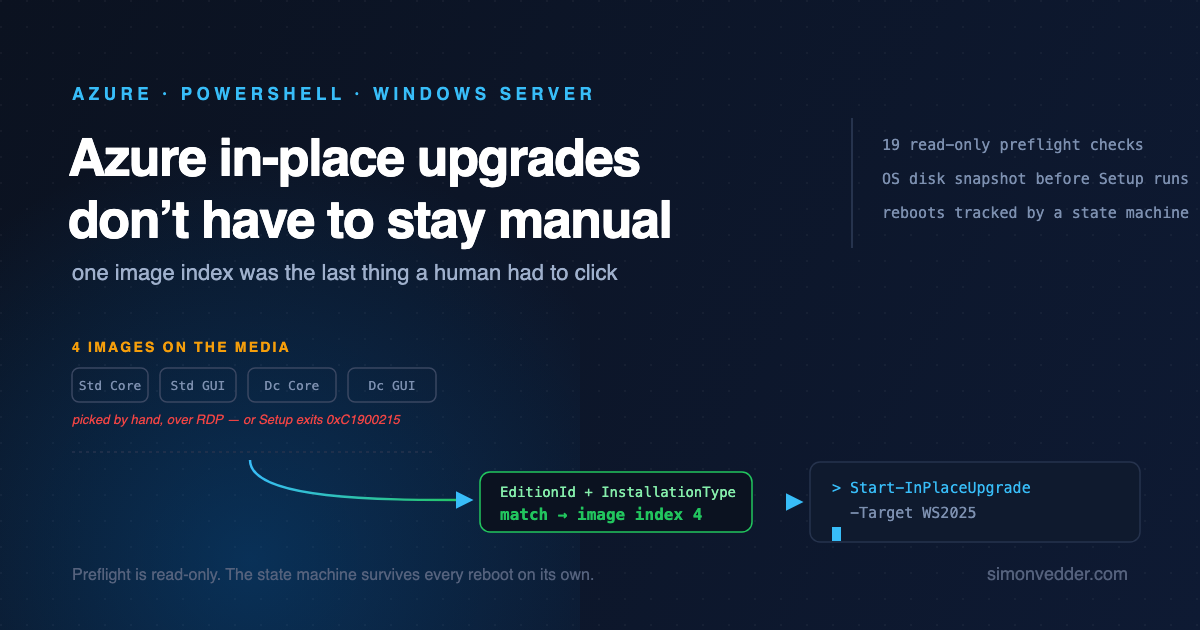
The upgrade media is not a single image. Its install.wim holds four of them: Standard and Datacenter, each in Server Core and Desktop Experience. When you run Setup interactively, there is a screen where you pick one, and you have probably clicked through it without thinking about it.
Unattended Setup has nobody to click that screen. It will not guess, and rather than pick wrong it stops. 0xC1900215 means Setup could not resolve which image on the media corresponds to the running system.
The fix is to resolve it yourself before Setup starts. Read the image list out of the WIM, match it against what the guest reports, and pass the answer in:
$arguments = '{0} /installfrom "{1}" /imageindex {2}' -f $arguments, $installFile, $TargetImageIndexMatching is where it gets interesting. The obvious approach is to compare image names, and it breaks on exactly the machines you care about most.
A Windows Server 2022 guest reports the image it needs as Datacenter (Desktop Experience). A 2016 guest, whose DISM is six years older, calls the same image Windows Server 2025 SERVERDATACENTER. Match on the display name and the 2016 upgrade fails while the 2022 one works.
Match on EditionId and InstallationType instead and both resolve to image index 4. Those two properties are stable across every source version I tested. Names are not.
The drive letter is not stable either
A smaller thing, but it cost me a run. The media disk came up as E: on the 2022 guest and F: on the 2016 guest, because what letters are free depends on what the guest already has mounted. Anything that hardcodes a path to E:\setup.exe works until it does not.
Search the attached volumes for setup.exe and use what you find. This is the kind of detail that never appears in a manual procedure, because a human doing it over RDP simply looks at Explorer and types the right letter.
The guest moves, the control plane does not
After a successful run the guest reports ProductName as Windows Server 2025 Datacenter, build 26100, DisplayVersion 24H2, with Windows.old sitting on the OS disk. From inside, it is a 2025 machine.
From outside, it is not. The VM’s instanceView.osVersion picks up the new build, because that value comes from the guest agent reporting what it sees.
But storageProfile.imageReference still says 2022-datacenter-g2, and it will say that for the rest of the VM’s life. No operation rewrites it. The image reference records what the VM was created from, and the VM was created from 2022.
That single fact is the whole mental model. An in-place upgrade changes the operating system on the disk. It changes nothing about Azure’s record of the machine.
Every platform feature that reads the image reference rather than the guest keeps seeing a 2022 VM. That is why Microsoft lists automatic OS image upgrades and hotpatching as unsupported afterwards. Those features are not broken by the upgrade. They are looking at a field the upgrade never touched.
Once you hold that picture, the caution in the documentation stops sounding like boilerplate and starts sounding like a specification.
Where rebuilding still wins
Given all of the above, redeploying is the better answer more often than people want it to be. If the VM is built from code, replaceable, and holds no state that lives only on its disk, put a 2025 image under it and move on.
You get current control-plane metadata, hotpatch eligibility, and none of the risk in this post. If you have no current image to deploy from, the monthly image build I set up with Bicep is a reasonable place to start.
In-place is for the machines where that is not on the table. Hand-configured application servers. Software licensed against a hostname or a machine ID. Servers whose build nobody documented and whose owner left.
And there is a list of cases where in-place is the wrong answer regardless of how expensive the rebuild is:
| Case | Why | Instead |
|---|---|---|
| Domain controllers | Microsoft advises against it, and the 2025 AD improvements need a clean install | Promote new DCs, demote the old ones |
| Failover cluster nodes | Not a supported in-place path | Cluster-Aware Updating or a rolling cluster OS upgrade |
| Datacenter: Azure Edition | Hotpatch servicing model, different media | Redeploy on the 2025 Azure Edition image |
| Ephemeral OS disks | No snapshot is possible, and the disk resets on reallocation | Redeploy |
| Unmanaged disks | Not supported | Migrate to managed disks first |
Non-en-US installations | The upgrade media is en-US only | Change the system language, or redeploy |
| Retail or OEM activated guests | The media expects volume licensing | Convert to a KMS client key first |
| Pooled AVD session hosts | Unsupported | Rebuild from image |
The last one is not on Microsoft’s list but belongs there anyway: any machine whose snapshot you have never restored. A snapshot you have not tested is a hope, not a rollback plan.
What five paths looked like in a lab
Numbers from real runs on fresh Marketplace VMs, Standard_B2ms in West Europe, no public IP, nothing extrapolated:
| Source image | Image picked | Setup start to build 26100 | Result |
|---|---|---|---|
2022-datacenter-g2 | 4, Datacenter (Desktop Experience) | 37 min | Desktop Experience kept |
2022-datacenter-core-g2 | 3, Datacenter (Core) | 23 min | Still Server Core, no explorer.exe |
2016-datacenter-gensecond | 4, Datacenter (Desktop Experience) | 42 min | Completed, 24H2 |
2019-datacenter-gensecond | 4, Datacenter (Desktop Experience) | 43 min | Driven end to end by an Automation runbook |
2022-datacenter-g2, feature update | Windows Update, no media disk | 186 min | Completed, build 26100.33296 |
The Core run being the fastest is no surprise once you see it, but it is worth planning around.
The feature update path takes roughly five times as long as the media disk path for the same source version, because it downloads the whole thing. It also needs no media disk and no install.wim matching, which makes it the simpler option when the maintenance window is not the constraint.
Breaking the first 2022 run down: preflight 35 seconds, snapshot 5 seconds, media disk created and attached 25 seconds, locating setup.exe and picking the image index 2 minutes, Setup’s downlevel phase 30 minutes, reboots and offline phases 6 minutes, then cleanup.
During that 30 minute downlevel phase the guest stays reachable and still reports build 20348. The half hour where nothing appears to be happening is normal, and it is most of the run.
What no preflight can see
I ended up with nineteen read-only checks per VM covering power state, disk type, edition, installation type, system language, free space, pending reboots, domain controller and cluster roles, activation channel, and whether the media image exists in that region. All of them are things Azure or the guest will tell you if you ask.
Three things matter more than any of them, and none can be checked from outside:
Third-party software that blocks Setup. Backup agents, filter drivers and EDR products are the usual suspects. Microsoft’s guidance is to disable antivirus and firewalls for the duration, which is a sentence that reads very differently in a lab than in production.
Application compatibility. The operating system upgrading cleanly says nothing about the SQL Server, the ERP, or the line-of-business service running on top of it. That is a vendor question, and it is the one that should gate the whole exercise.
Window length. Budget 60 to 120 minutes per VM plus reboots, and treat the fast Core run as the exception rather than the plan.
What I ended up building
Everything above is now a PowerShell module. AzureInPlaceUpgrade takes a VM name and a target and gets it from 2016, 2019 or 2022 to 2025 without anyone logging on: read-only preflight, OS disk snapshot, media disk attached, image index resolved, Setup started detached, then a state machine that survives the reboots.
The cmdlets read nothing off the VM. Start returns what it did and Complete takes those values back, which keeps the module a plain function of its parameters. Tags only appear one layer up, in the Automation runbook that picks the fleet and remembers progress between jobs. That is the same tag-driven pattern I used for start and stop schedules, and it belongs at that layer rather than inside the module.
It is on the PowerShell Gallery, MIT licensed, and currently a preview:
Install-Module AzureInPlaceUpgrade -AllowPrerelease
$r = Test-InPlaceUpgradeReadiness -ResourceGroupName rg-apps-prod-weu -Name vm-app-prod-weu-01 -Target WS2025
$r.Decision # Eligible | NotEligible | AlreadyAtTargetThe preflight is read-only and changes nothing, so it is safe to point at production while you are still deciding.
What I still do not know
The Standard edition paths are untested. Everything above ran on Datacenter, and while the image matching does not care about the edition in principle, I have not proven it.
Custom images are an open question. All my runs started from Marketplace images with a known EditionId. A generalized image built years ago in someone’s pipeline may report something the matching logic has not seen.
I have no data on how third-party agents behave during Setup, because my lab has none installed. If you have run this with an EDR agent in place, that is the failure mode I would most like to hear about.
And the thing I would genuinely like to be wrong about: whether Microsoft ever adds an upgrade classification to Azure Update Manager. If that happens, most of this post becomes history, and that would be the right outcome.
Where to get it
It is on the PowerShell Gallery, MIT licensed, and still a preview:
Install-Module AzureInPlaceUpgrade -AllowPrerelease
Preview is meant literally. Five upgrade paths are lab-verified with published timings; the 2012 R2 source, the 2019 and 2022 targets, Trusted Launch and retail-activated guests are not. The version says so rather than making you find out.
Source, the lab verification log with the timings above, the known issues and the architecture decisions: github.com/simon-vedder/azure-vm-inplace-upgrade. The tool page, with every cmdlet and every parameter, is at simonvedder.com/tools/azure-inplace-upgrade.
Everything in this post can be driven one VM at a time from your own machine. If you would rather have the fleet upgrade itself ring by ring, the Bicep deployment in the repository stands up the orchestrator: an Automation Account with a system-assigned identity, a custom role with exactly the actions it needs, the runbook, the schedules, and a workbook that shows every VM, every transition and every failure reason.
I write about Azure infrastructure and security at simonvedder.com. Running this at scale, or think I got a detail wrong? Drop me a line.
Leave a Reply